- Shopping, made easy.
- /
- Get the app!
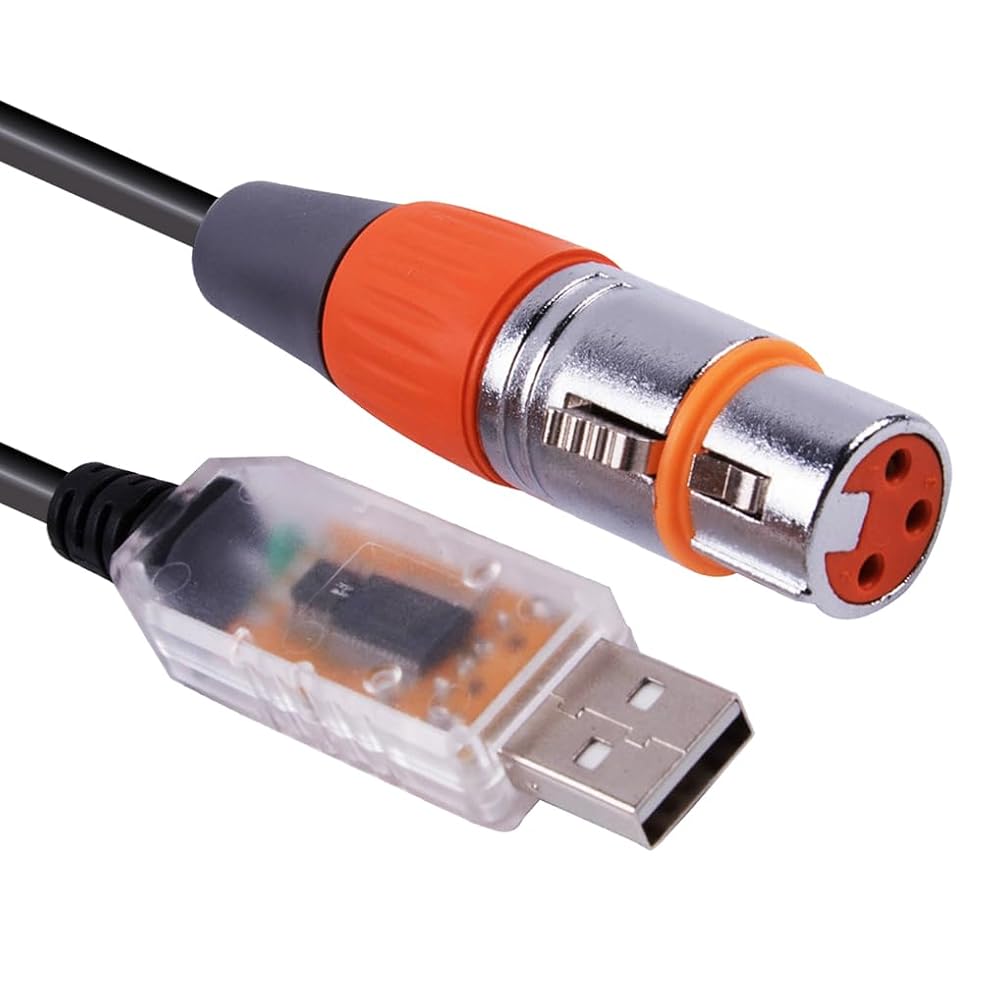
USB to RS485 XLR DMX512 Control Cable (6ft) - User ManualThis USB to RS485 DMX512 cable allows your computer to communicate with DMX512 lighting equipment. It is compatible with most DMX lighting software such as Freestyler, SGM Controller, QLC+, and other DMX512 systems. Designed for stage lighting, DJ shows, theaters, and live events, it provides stable and reliable DMX signal transmission.
1 × USB to RS485 DMX512 Cable (6ft / 1.8m)
1 × Driver CD (if included) / Online driver download link
1 × User Manual
Input Interface: USB Type-A
Output Interface: 3-pin XLR (Male/Female)
Communication Protocol: DMX512 (RS485 standard)
Cable Length: 6ft (1.8m)
Supported OS: Windows (XP/7/8/10/11), MacOS, Linux
Chipset: FTDI / CH340 (depending on version)
Step 1 – Driver Installation
Windows:
Insert the Driver CD or download the latest USB-to-RS485 driver (FTDI/CH340).
Follow on-screen prompts until installation is complete.
MacOS/Linux:
Most systems recognize the cable automatically. If not, download the FTDI VCP driver and install it manually.
Step 2 – Connect the Cable
Plug the USB connector into your computer.
Connect the XLR connector to the DMX input of your lighting fixture or DMX controller.
Ensure connections are secure before powering on equipment.
Step 3 – Configure Software
Open your DMX lighting software (e.g., Freestyler).
Go to Settings → Interface Setup and select the COM port assigned to the cable.
Choose DMX512 / RS485 as the output protocol.
Save settings and restart the software if necessary.
Maximum supported DMX chain length: 32 devices without a splitter.
Always use a DMX terminator (120Ω resistor) at the end of the chain to avoid signal reflection.
Keep DMX cables away from power cables to reduce interference.
Do not sharply bend, twist, or stretch the cable.
IssueCauseSolution Device not detectedDriver not installed / outdatedReinstall or update driver Lights flicker or random behaviorWrong COM port / missing terminatorCheck software settings & add terminator No response from fixturesIncorrect DMX addressingSet correct DMX addresses on fixtures USB not recognizedFaulty USB portTry another USB port or computer Indoor use only.
Keep away from moisture, liquids, and high heat.
Disconnect from power when not in use.
Use only as intended for DMX lighting control.
 -18%
USB RS232 Serial Console Cable for Samsung TV Ex-Link Port PC TRS 3.5mm Stereo Audio Jack AJ Plug Update Upgrade Cable
SAR 73
-18%
USB RS232 Serial Console Cable for Samsung TV Ex-Link Port PC TRS 3.5mm Stereo Audio Jack AJ Plug Update Upgrade Cable
SAR 73
 USB Programming Cable for Tait TM8000 TM8100 TM8200 TM9100 TM9300 TAIT 8-pin RS232 to RJ45 8P8C
SAR 99
USB Programming Cable for Tait TM8000 TM8100 TM8200 TM9100 TM9300 TAIT 8-pin RS232 to RJ45 8P8C
SAR 99
 Micro USB to RJ45 RS232 Serial Console Cable for Routers Switches and Firewall
SAR 89
Micro USB to RJ45 RS232 Serial Console Cable for Routers Switches and Firewall
SAR 89
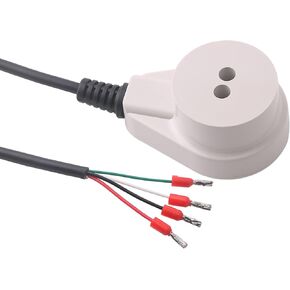 RS485 Interface Near Infrared Adapter IR IRDA Converter CP2102 Transparent Transmission IEC62056-21 IEC1107 DLMS MODBUS Cable
SAR 146
RS485 Interface Near Infrared Adapter IR IRDA Converter CP2102 Transparent Transmission IEC62056-21 IEC1107 DLMS MODBUS Cable
SAR 146