- Shopping, made easy.
- /
- Get the app!
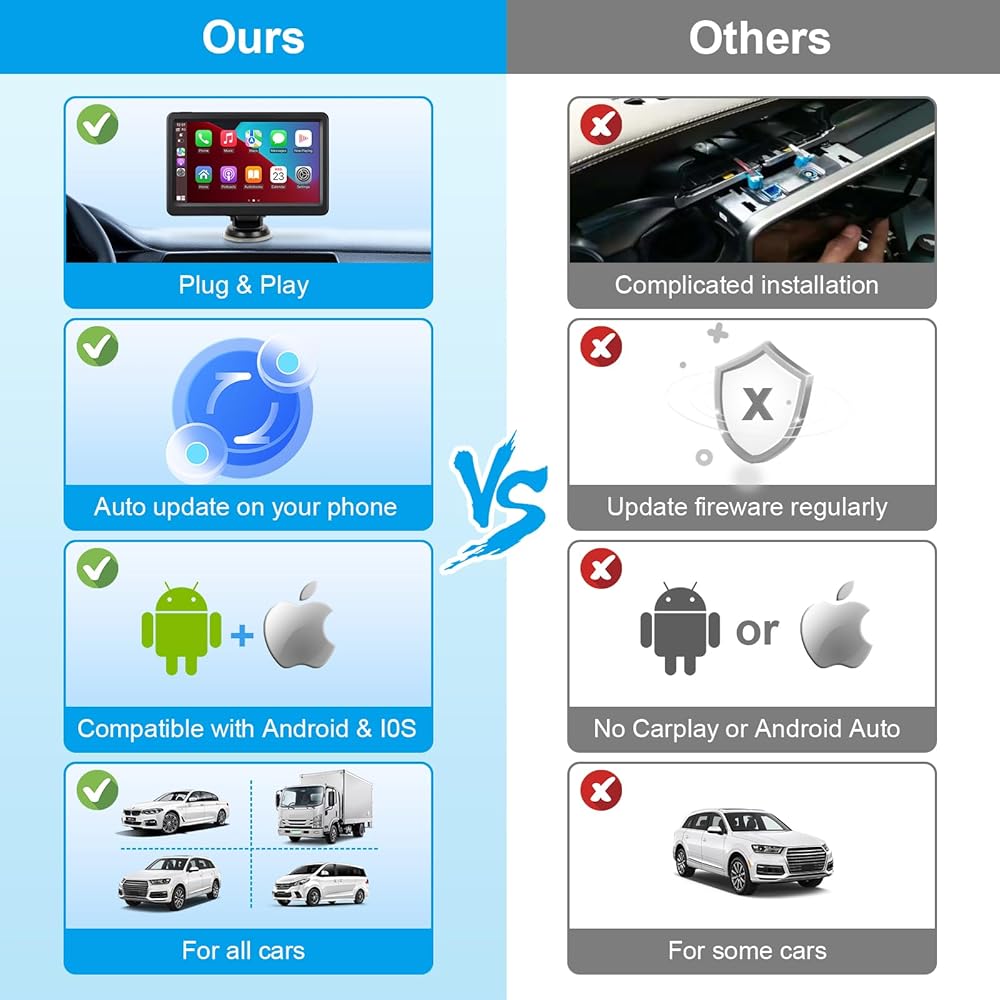
1. How to Connect via Bluetooth Step-by-Step Setup Guide: ① Enable Bluetooth & WiFi on your iPhone/Android phone (both must be ON for Android Auto). ② Search for "CAR BT-****" in your phone's Bluetooth devices list and pair. ③ When prompted to "Allow Contact Sync," tap "Allow" (required for full functionality). ④ Wait 8-10 seconds for automatic entry into CarPlay/Android Auto. 💡 Connection fails? Restart your phone and device, then repeat steps above. 2. Why Bluetooth Disconnects & How to Fix Common Causes & Solutions: ⚠️ Power Instability Cause: Non-original car charger triggers device reboot. Fix: Use only the included charger to stabilize voltage. ⚠️ Signal Interference Cause: Other electronics (dashcams/USB chargers) disrupt Bluetooth. Fix: Temporarily turn off nearby devices during connection. ⚠️ System Overload Cause: Phone connected to multiple Bluetooth devices (earbuds/watches). Fix: Disconnect other Bluetooth accessories before pairing. 3. Solving Frequent Bluetooth Issues Problem: Random Disconnections Solution: a) Reboot device (hold power button 10 seconds). b) Move phone closer to the screen (within 1 meter). c) Update phone OS to latest version. Problem: Android Pairing Failure Solution: a) Ensure both Bluetooth + WiFi are enabled. b) Update "Android Auto" app via Google Play. c) Reset network settings: Phone Settings > System > Reset Wi-Fi/Bluetooth. Problem: Call Noise/No Sound Solution: a) Disable FM Transmitter: Go to device home screen > "Audio Output" > Select "Bluetooth" or "AUX". b) Check phone call volume (separate from media volume). c) Clean phone Bluetooth port from dust. Pro Tips for Stable Connection ▸ Compatibility Check: Requires iOS 10+ or Android 9.0+. Older OS may cause issues. ▸ Weekly Restart: Power-cycle device weekly to clear system cache.
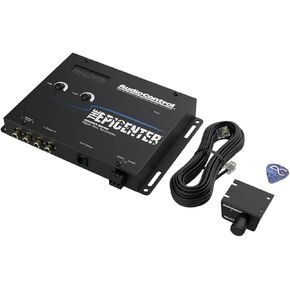 AudioControl EPICENTER Digital Bass Restoration Control Processor, Car Audio Bass Booster Enhancer with Wired Remote Control (Black)
SAR 777
AudioControl EPICENTER Digital Bass Restoration Control Processor, Car Audio Bass Booster Enhancer with Wired Remote Control (Black)
SAR 777
 Mini Wireless Carplay Adapter for Apple iPhone,Plug and Play Easy Setup Automatic Reconnect,Convert Wired to Wireless Car Play Dongle,for Cars from 2016 & iPhone iOS 10+ (USB A) Grey01
SAR 110
Mini Wireless Carplay Adapter for Apple iPhone,Plug and Play Easy Setup Automatic Reconnect,Convert Wired to Wireless Car Play Dongle,for Cars from 2016 & iPhone iOS 10+ (USB A) Grey01
SAR 110
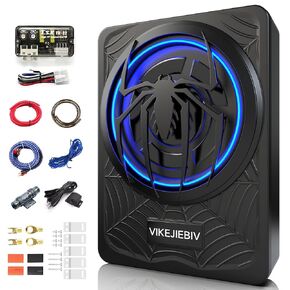 1200W 10" Slim Underseat Car Subwoofer and Amp Package with Ambient Light, Individual Control for Low Pass/Gain/Boost Bass, Loud Stereo Sound, Deep Bass Perfect for Truck/SUV/Jeep/MPV
SAR 470
1200W 10" Slim Underseat Car Subwoofer and Amp Package with Ambient Light, Individual Control for Low Pass/Gain/Boost Bass, Loud Stereo Sound, Deep Bass Perfect for Truck/SUV/Jeep/MPV
SAR 470
 -8%
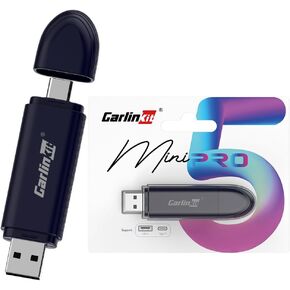
Carlinkit 5.0 SE Pro Wireless Android Auto & CarPlay Adapter,Convert Wired to Wireless for OEM Vehicles (Model Year: 2015 to 2025) Compatible with Wired CarPlay & Android Auto Cars
SAR 230
-8%
Carlinkit 5.0 SE Pro Wireless Android Auto & CarPlay Adapter,Convert Wired to Wireless for OEM Vehicles (Model Year: 2015 to 2025) Compatible with Wired CarPlay & Android Auto Cars
SAR 230