- التسوق ، اصبح سهلا.
- /
- احصل على التطبيق!
How to switch s mode to windows 11
1. On your PC running Windows 11 in S mode, open Settings > Update & Security > Activation.
2. In the Switch to Windows 11 Home or Switch to Windows 11 Pro section, select Go to the Store. (If you also see an "Upgrade your edition of Windows" section, be careful not to click the "Go to the Store" link that appears there.)
3. On the Switch out of S mode (or similar) page that appears in the Microsoft Store, select the Get button. After you see a confirmation message on the page, you'll be able to install apps from outside of the Microsoft Store.
PERFORMANCEProcessor
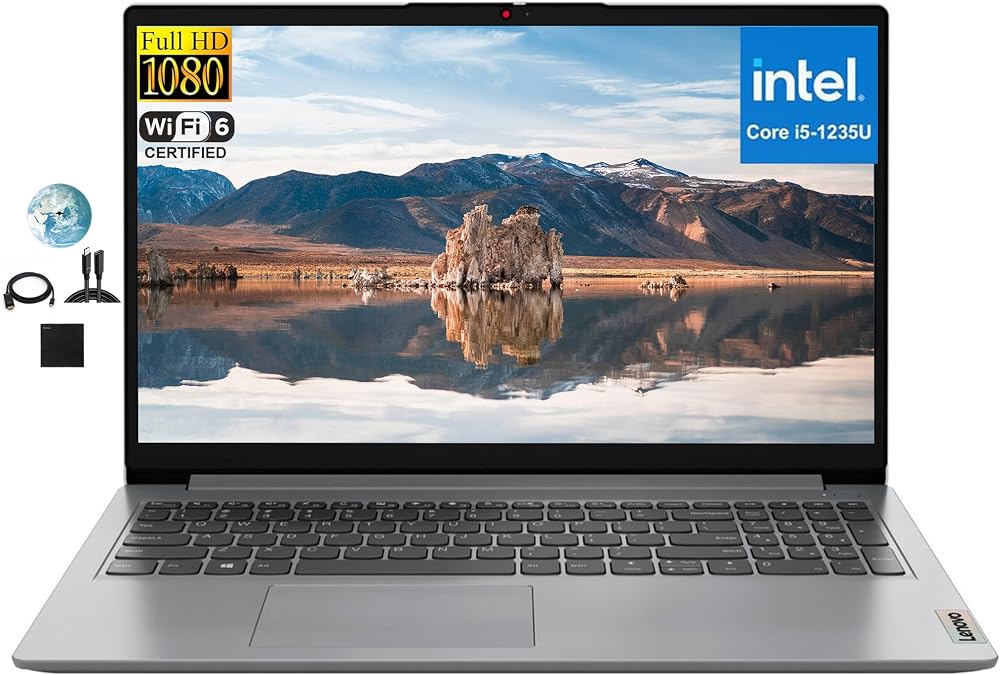
12th Gen Intel Core i5-1235U, 10C (2P + 8E) / 12T, P-core 1.3 / 4.4GHz, core_i5 / 4.4GHz, 12MB
Graphics
Intel Iris Xe Graphics
Memory
Upgraded to 16GB DDR4-3200
Storage
Upgraded to 1TB PCIe NVMe M.2 Solid State Drive
Optical
None
Speakers
Stereo speakers, 1.5W x2, Dolby Audio
Camera
HD 720p with Privacy Shutter
Battery
Integrated 42Wh, 65W Round Tip (3-pin) Power Adapter
DESIGNDisplay
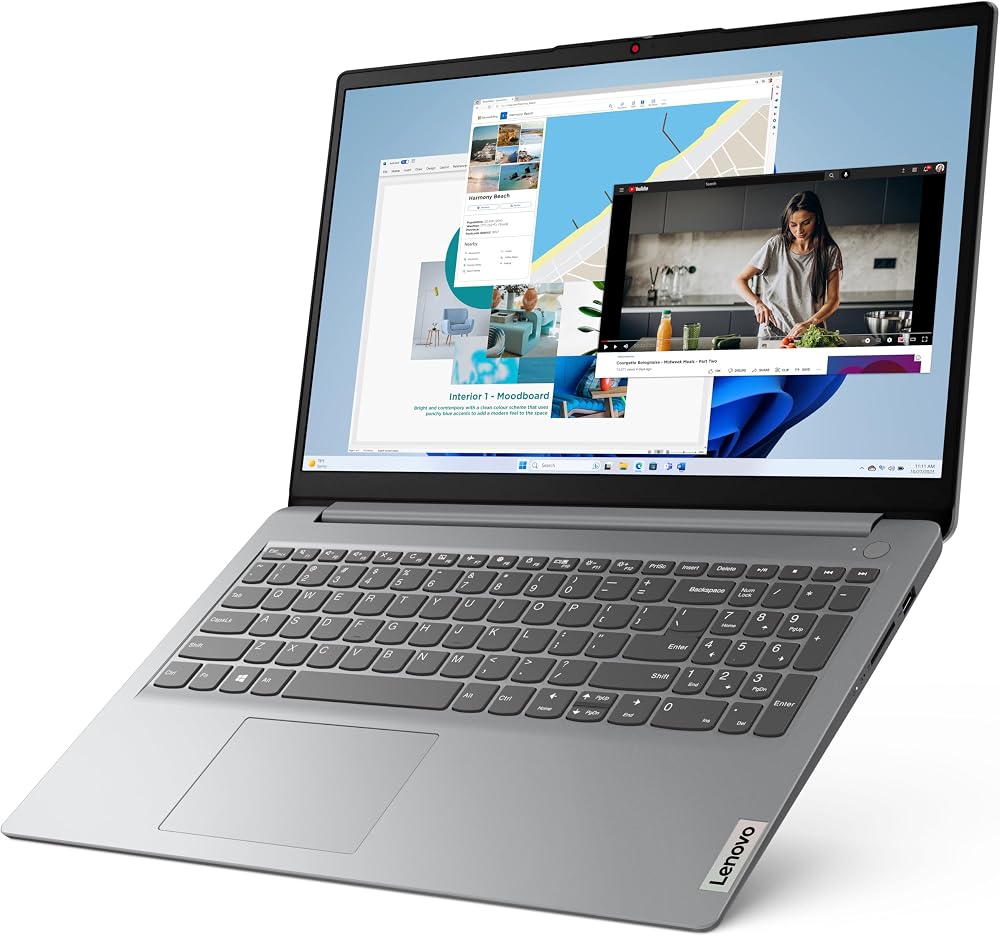
15.6" FHD (1920x1080) Anti-glare Display, TN, 220nits
Keyboard
Non-backlit, English
Case Color
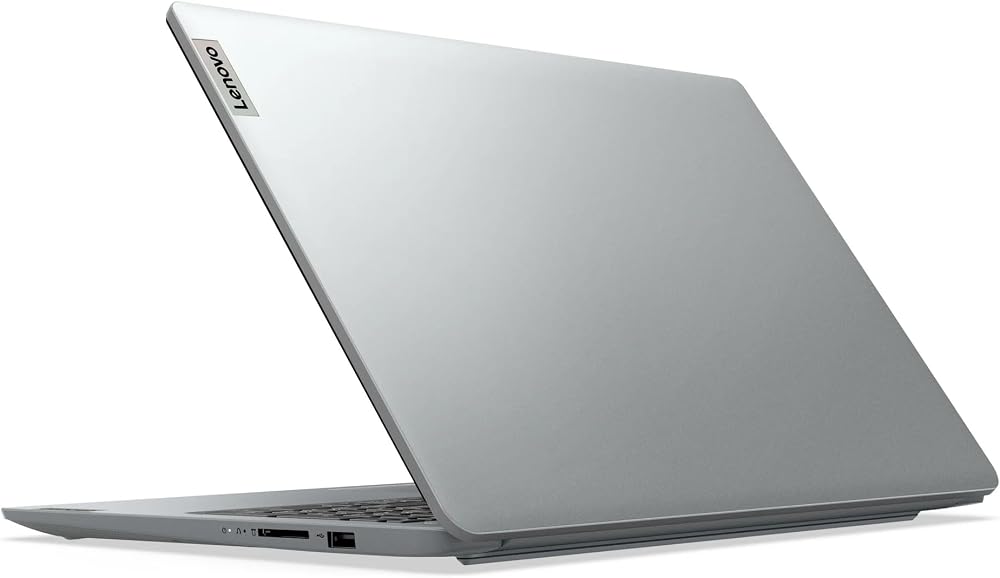
Cloud Grey
Dimensions (WxDxH)
360.2 x 236 x 17.9 mm (14.2 x 9.3 x 0.70 inches)
Weight
Starting at 1.63 kg (3.6 lbs)
SOFTWAREOperating System
Windows 11 Home in S mode, English
CONNECTIVITYEthernet
No Onboard Ethernet
WLAN + Bluetooth
Wi-Fi 6, 11ax 2x2 + BT5.2
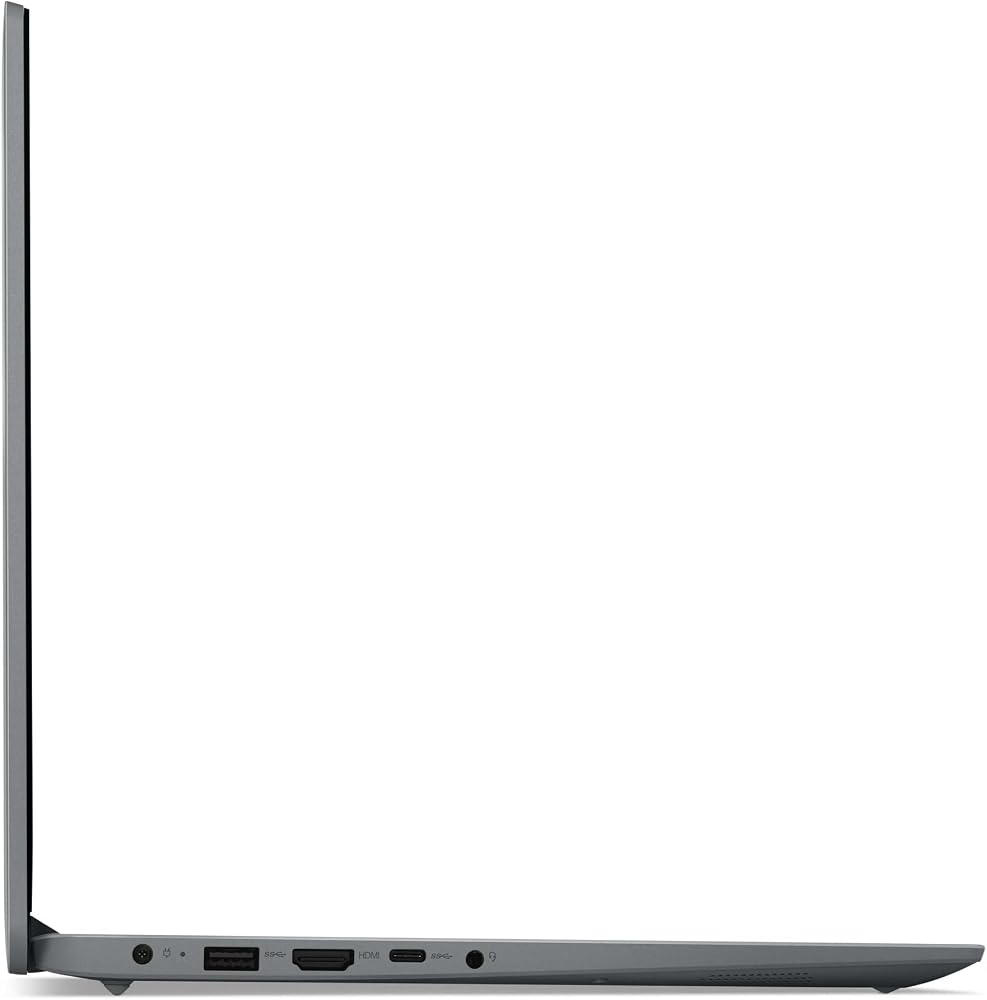
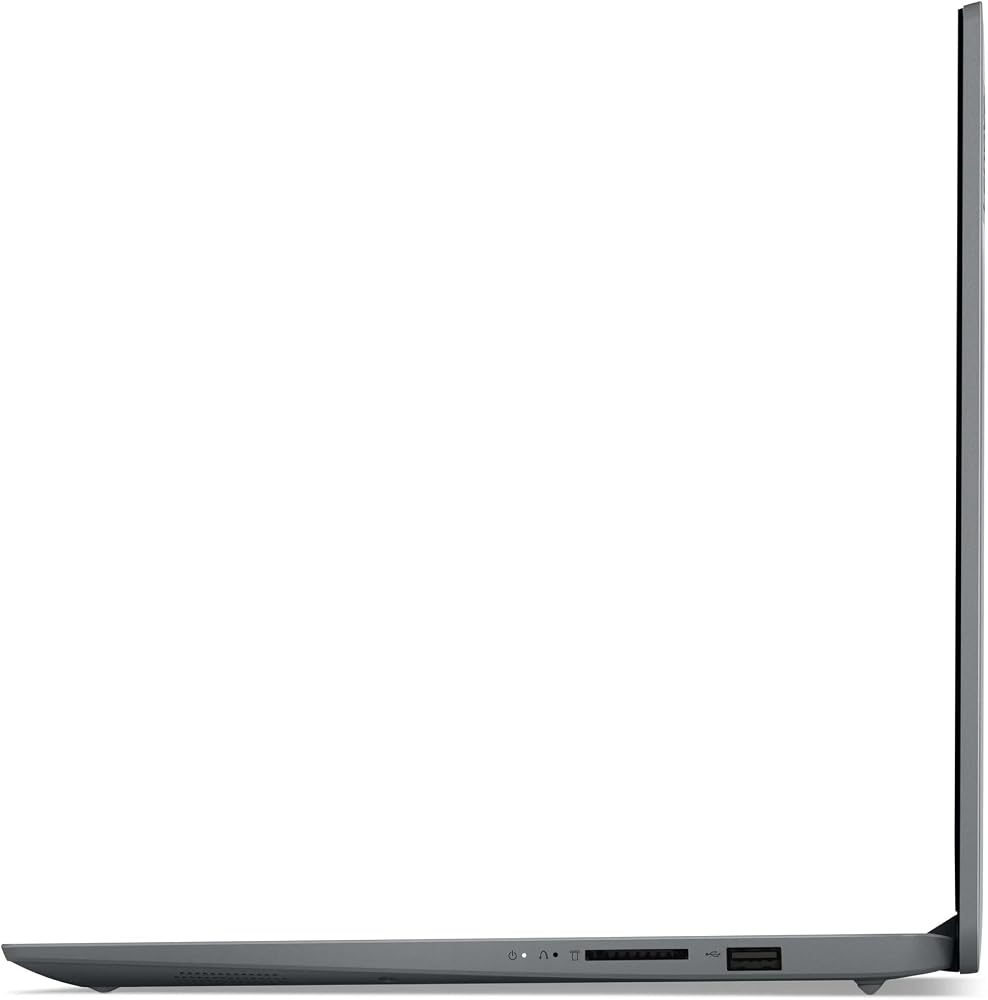
Standard Ports
1x USB 2.0
1x USB 3.2 Gen 1
1x USB-C 3.2 Gen 1 (support data transfer only)
1x HDMI 1.4b
1x Headphone / microphone combo jack (3.5mm)
1x Card reader
1x Power connector
Fingerprint Reader
None
 لينوفو ثينك باد E15 G2 20TDS00B00 15.6 انش نوت بوك - فل اتش دي - 1920 x 1080 - انتل كور i5 i5-1135G7 رباعي النواة (4 كور) 2.40 جيجاهيرتز - 8 جيجا اس دي - اسود لامع - ويندوز 10 برو - انتل ايريس
SAR 2,905
لينوفو ثينك باد E15 G2 20TDS00B00 15.6 انش نوت بوك - فل اتش دي - 1920 x 1080 - انتل كور i5 i5-1135G7 رباعي النواة (4 كور) 2.40 جيجاهيرتز - 8 جيجا اس دي - اسود لامع - ويندوز 10 برو - انتل ايريس
SAR 2,905
 لينوفو ايديا باد 5 15.6 انش رايزن 7-4700U 16 جيجا رام 512 جيجا اس اس دي رصاصي - ايه ام دي رايزن 7-4700U ثماني النواة - دقة 1920 x 1080 فل اتش دي - انتل واي فاي 6 - ويندوز 10 هوم
SAR 2,905
لينوفو ايديا باد 5 15.6 انش رايزن 7-4700U 16 جيجا رام 512 جيجا اس اس دي رصاصي - ايه ام دي رايزن 7-4700U ثماني النواة - دقة 1920 x 1080 فل اتش دي - انتل واي فاي 6 - ويندوز 10 هوم
SAR 2,905
 لينوفو يوجا C740 2 في 1 14 بوصة فل اتش دي 1080 بيكسل كمبيوتر محمول، معالج انتل كور i5-10210U رباعي النواة، ذاكرة الوصول العشوائي DDR4 8 جيجا، 256 جيجا اس اس دي، لوحة مفاتيح بإضاءة خلفية، كاميرا ويب، واي فاي، بلوتوث، ويندوز 10، ميكا
SAR 2,244
لينوفو يوجا C740 2 في 1 14 بوصة فل اتش دي 1080 بيكسل كمبيوتر محمول، معالج انتل كور i5-10210U رباعي النواة، ذاكرة الوصول العشوائي DDR4 8 جيجا، 256 جيجا اس اس دي، لوحة مفاتيح بإضاءة خلفية، كاميرا ويب، واي فاي، بلوتوث، ويندوز 10، ميكا
SAR 2,244
 Lenovo 2023 Slim 7 16 بوصة 2.5K 120 هرتز IPS شاشة لمس كمبيوتر محمول 12th Intel 14-Core i7-12700H Arc A370 Graphics 32GB LPDDR5 2TB NVMe SSD WiFi 6E Thunderbolt 4 HDMI لوحة مفاتيح بإضاءة خلفية Windows 11 Pro w/RE USB
SAR 3,664
Lenovo 2023 Slim 7 16 بوصة 2.5K 120 هرتز IPS شاشة لمس كمبيوتر محمول 12th Intel 14-Core i7-12700H Arc A370 Graphics 32GB LPDDR5 2TB NVMe SSD WiFi 6E Thunderbolt 4 HDMI لوحة مفاتيح بإضاءة خلفية Windows 11 Pro w/RE USB
SAR 3,664