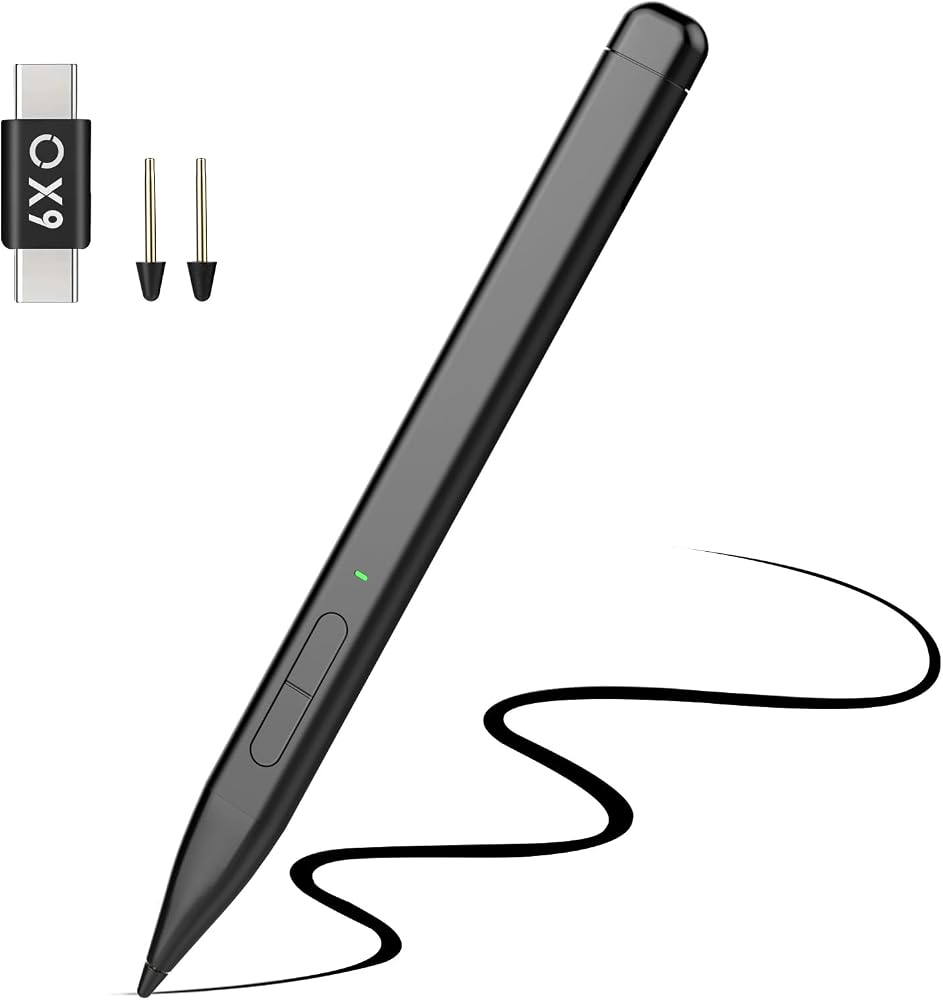
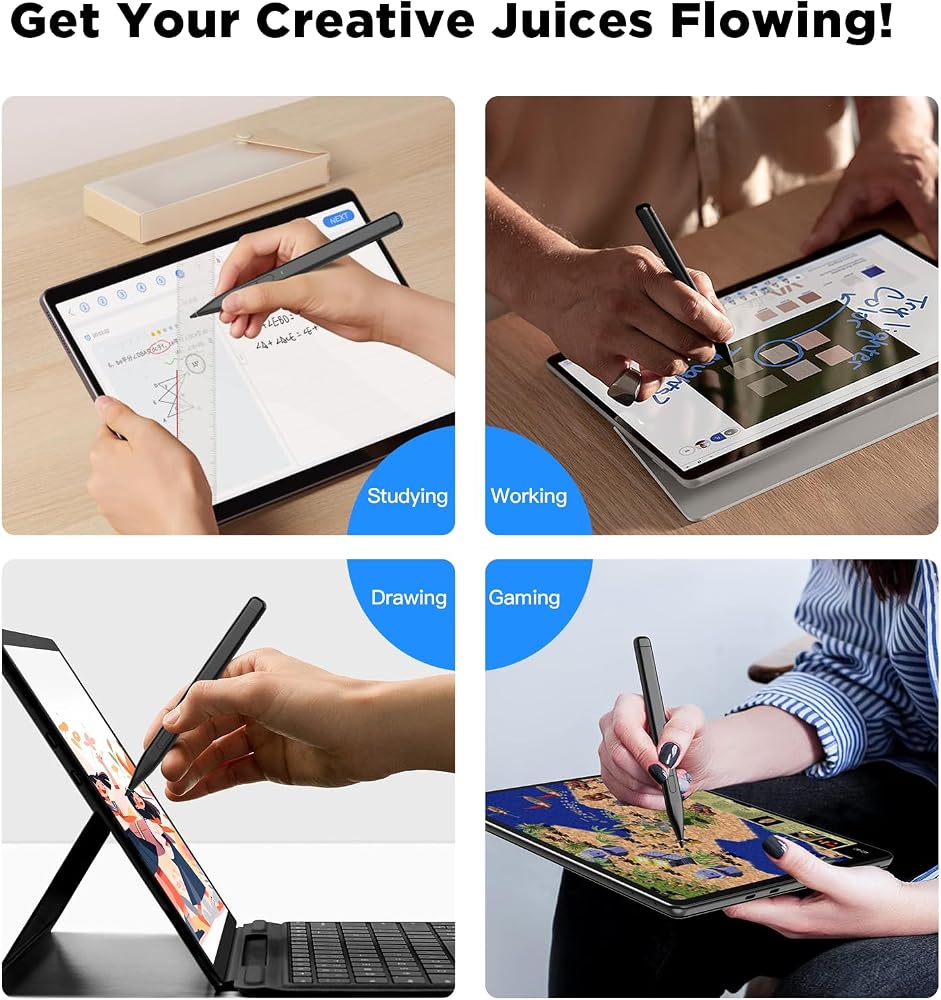
TiMOVO Stylus Pen for Microsoft Surface, Magnetic Slim Pen 2 for Surface Pro 9/8/7+/7/6/5/4/3/X, Surface 3, Go 3/2/1, Book 3/2/1, Laptop 3/2/1, Studio 2+/2/1, HP Stylus,HP Envy X360 Pen 4096 Pressure
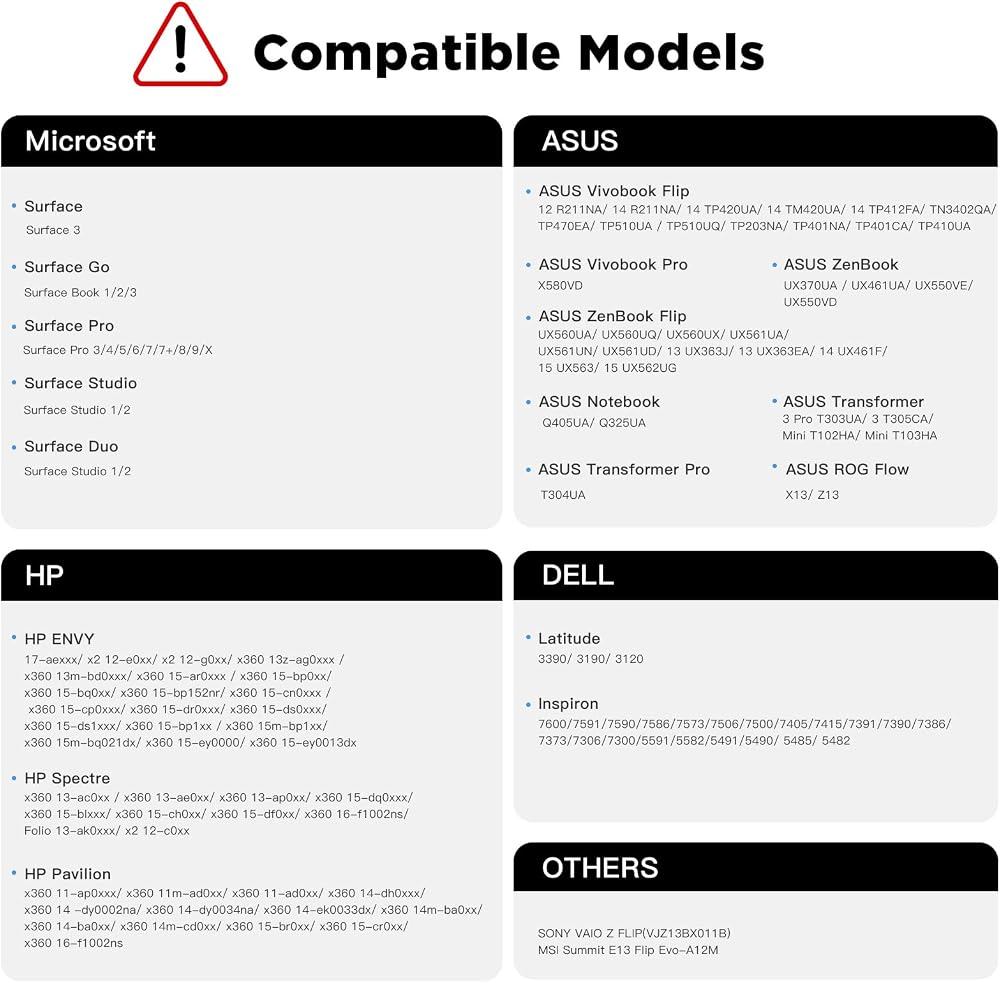
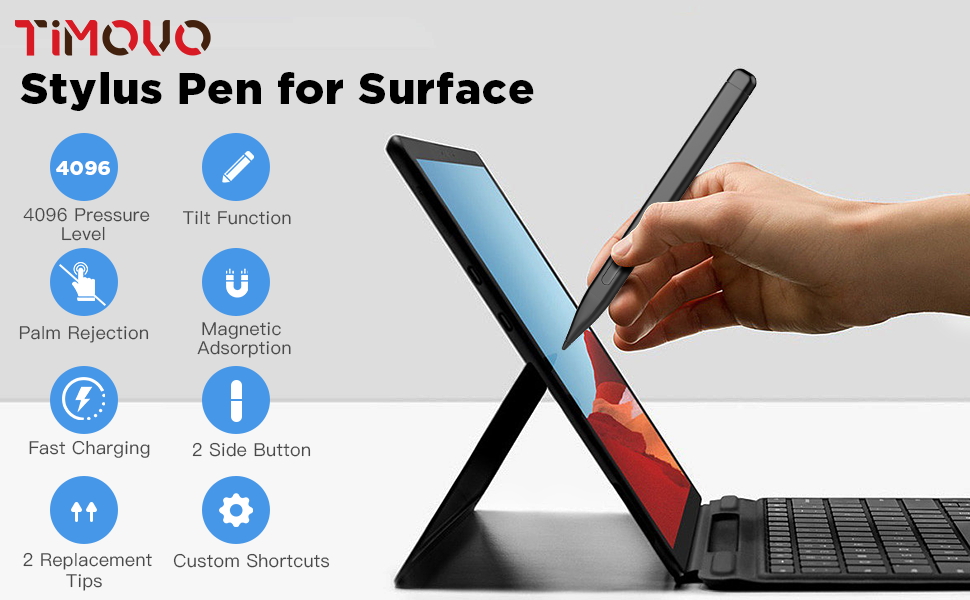
【Wide Compatibility】Our Microsoft Surface pen is compatible with all touch screen electronic devices that support MPP2.0 protocols, like Microsoft Surface Pro 9/8/7+/7/6/5/4/3/X, Surface 3, Surface Book 1/2/3, Surface Studio 1/2, Surface Go 1/2/3, Surface Laptop 1/2/3/4/5, Surface Duo 1/2 and HP Envy X360, HP Pavilion X360, HP Specter X360, HP Spectre X2, HP Envy X2, ASUS/ DELL series etc. (Package List: 1*Stylus Pen, 1*Graphite Nib, 1*POM Nib, 1*Type-C Adapter, 1*Manual.)
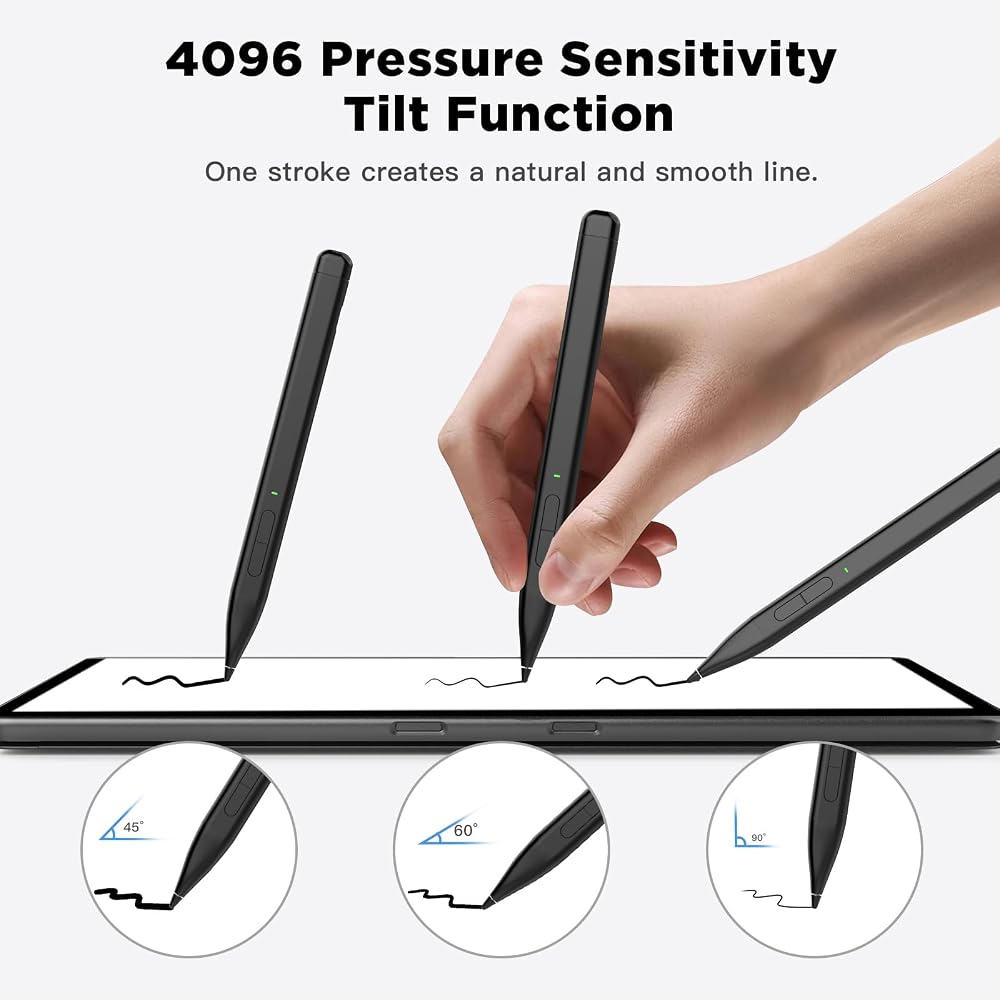
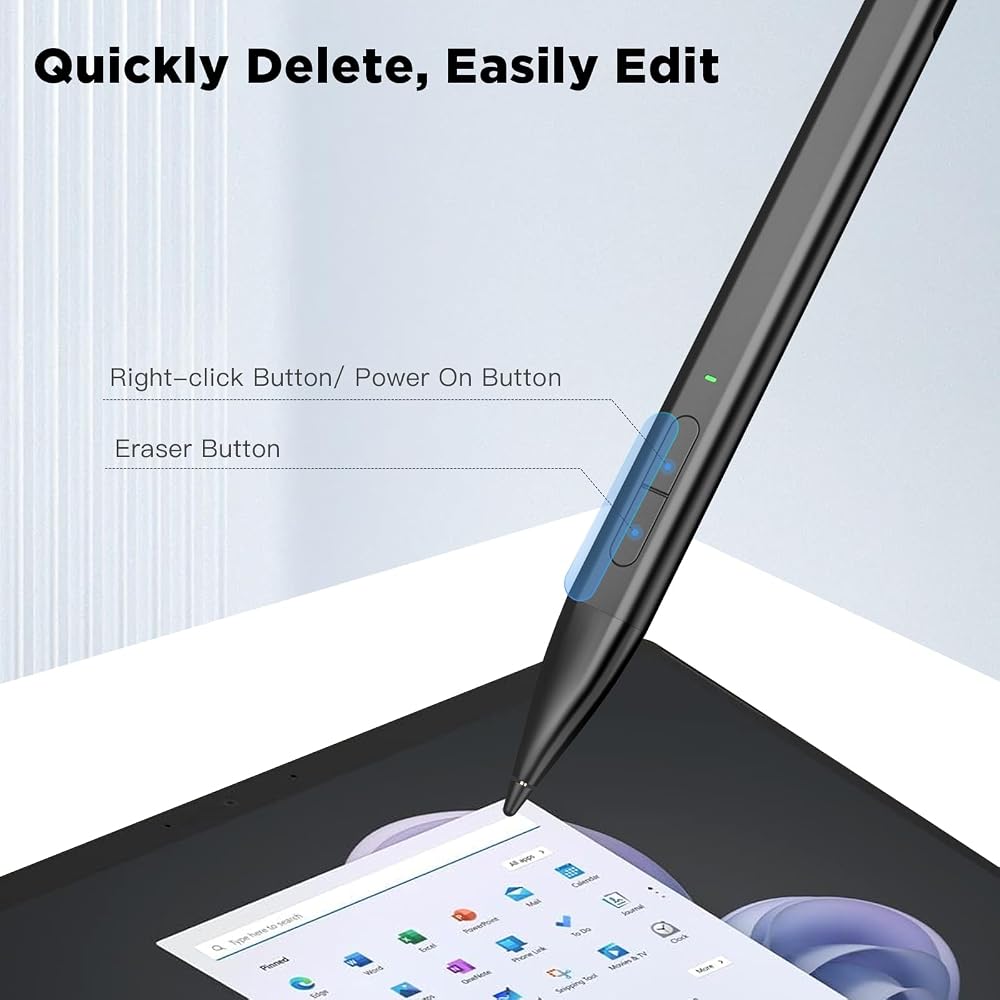
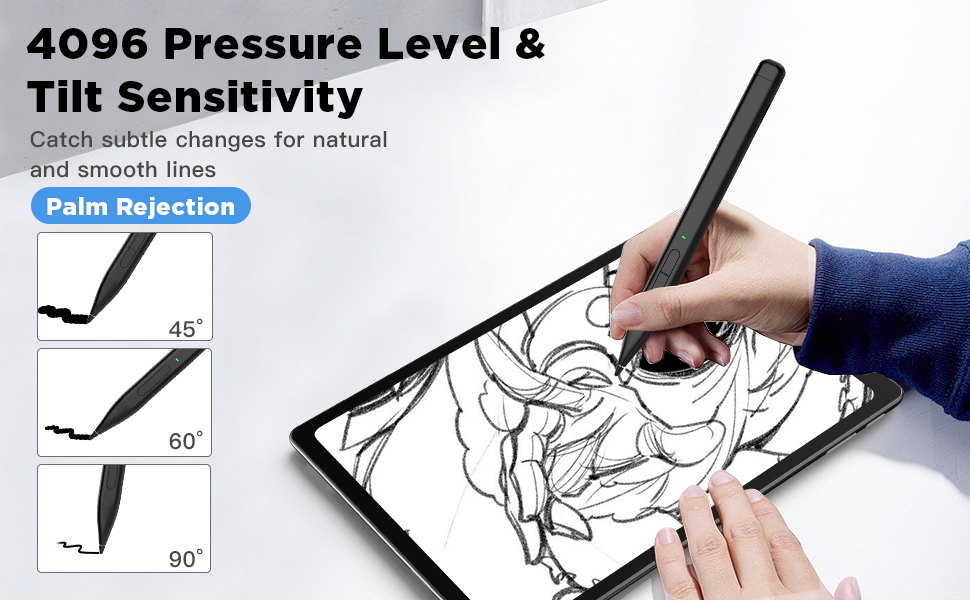
【4096-Level Sensitivity & Tilt Function】With 4096 pressure sensitivity, the Surface Pro pen can catch subtle pressure changes for a highly accurate drawing and writing experience. The sensitive tile function allows you to adjust the line thickness with a simple tilt. Features 2 useful buttons: eraser & right-click button, quickly deleting mistakes and editing easily.
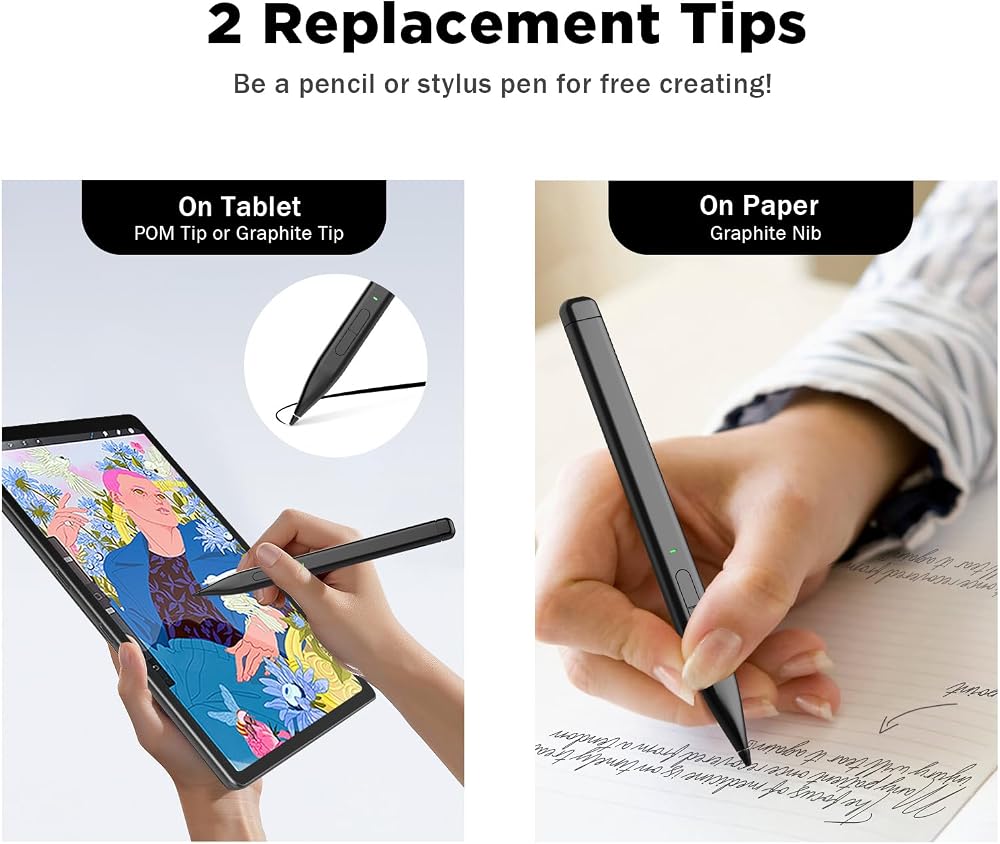
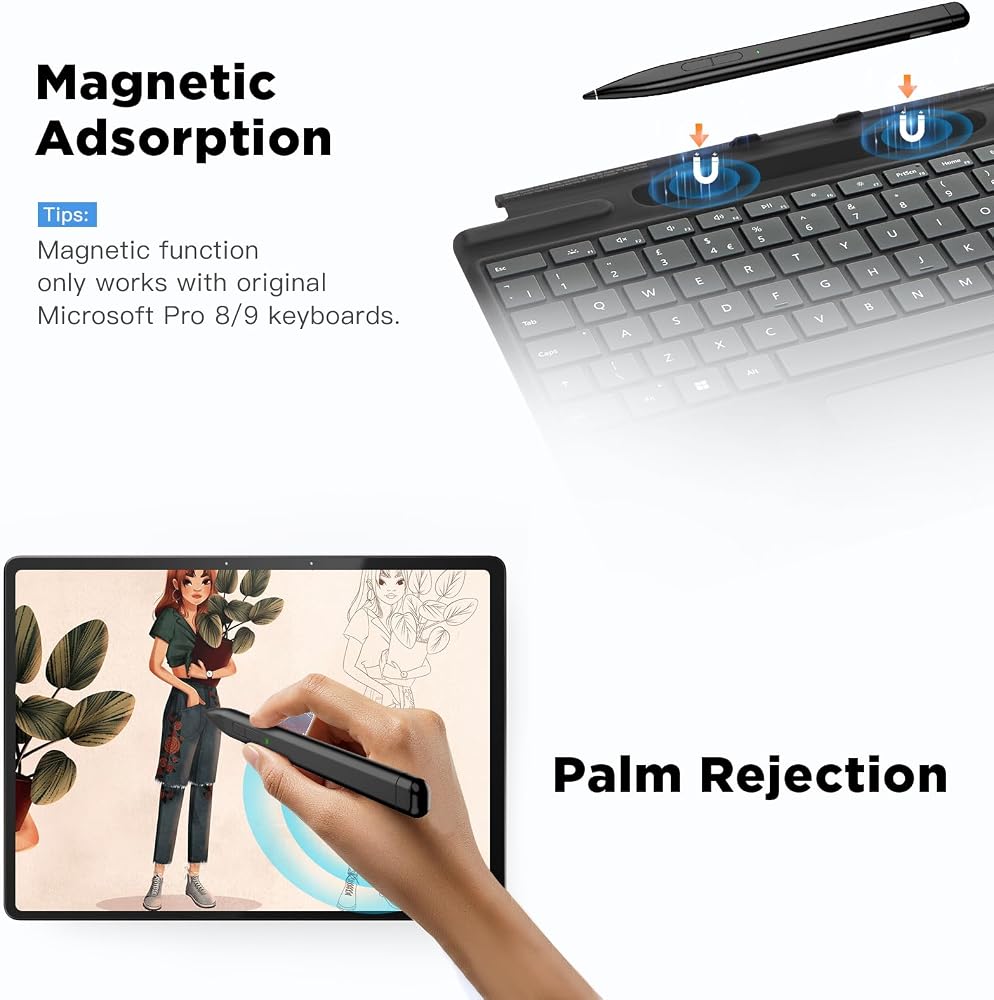
【Palm Rejection & Magnetic Function】The stylus pen for Surface Pro supports the palm rejection, so feel carefree in resting your palm on the screen and focus on your creation. It can be magnetically attached and stowed on the original keyboard of Surface Pro 8/9, keeping it within reach and preventing it from being lost. This active pen also can be used as a pencil. After replacing the graphene pen tip, it can write and draw on paper, greatly facilitating study and office work.
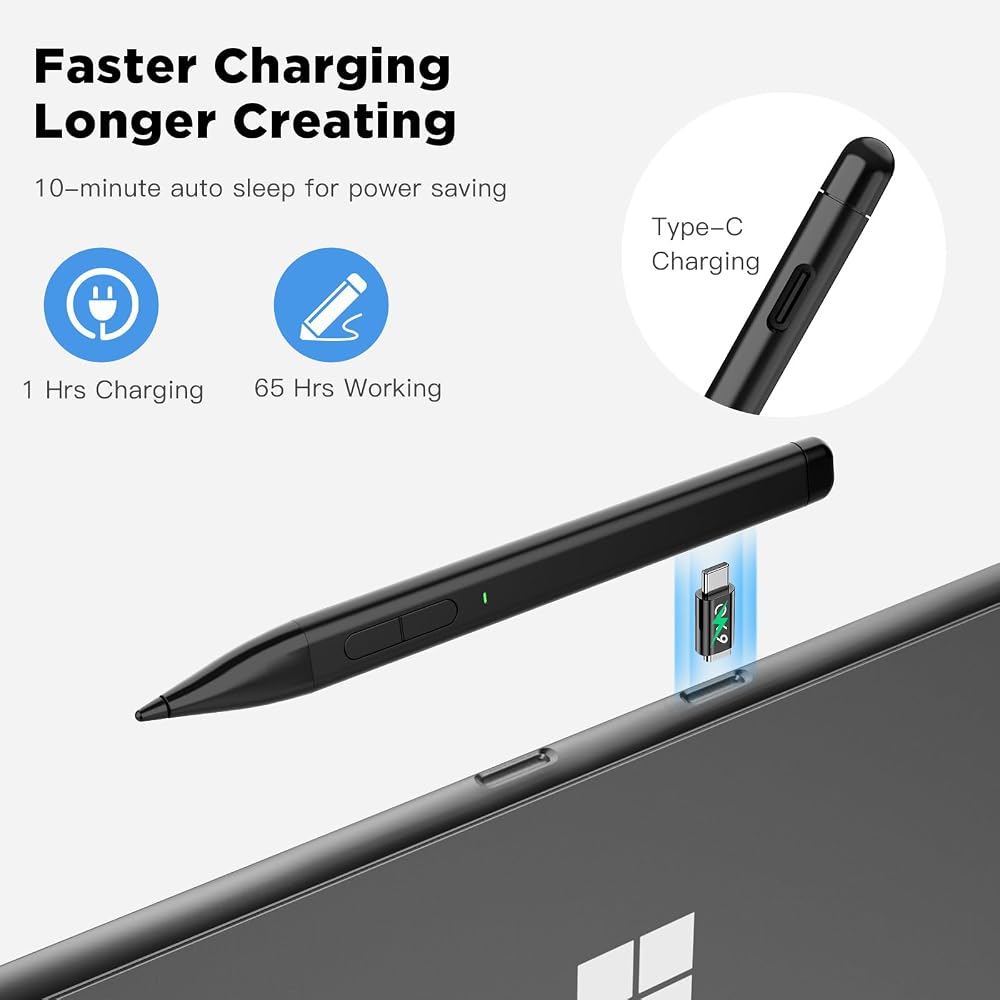
【Fast Charging & Longer Standby】The HP stylus only takes 1 hour to fully charge for more than 65 hours of battery life. Leave it for 10 minutes to turn off automatically, and turn it on by pressing the button on the pen, saving power and prolonging the using life. Our HP Envy stylus pen is perfect for creators, office workers, and students who need to take notes or draw frequently.
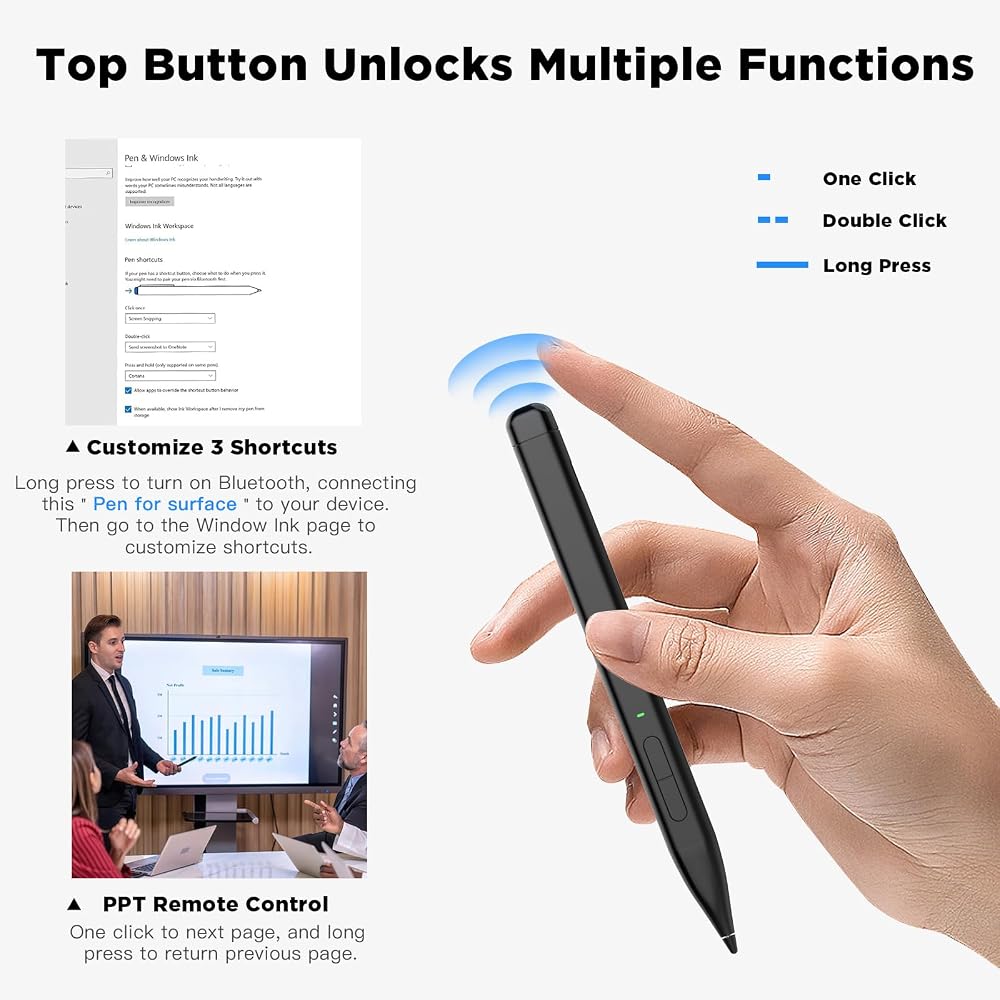
【PPT Remote Control】Easily pair your surface pen to your device via Bluetooth. Once paired with your surface stylus, you can click the top button once to open Microsoft Whiteboard, double-clicking will open Snip & Sketch, and press and hold will open Sticky Notes. With the surface stylus as a PowerPoint remote control from across the office during a PowerPoint slide show, click the top button to advance to the next slide and press and hold the top button to return to the previous slide.
 TiMOVO Stylus Pen for iPad Pencil for iPad 10th/9th/8th/7th/6th Generation,20Hrs Work Palm Rejection Apple Pen for 2018-2023 iPad Pro,iPad Air,iPad Mini High Precise iPad Pencil 1st Generation,White
SAR 71
TiMOVO Stylus Pen for iPad Pencil for iPad 10th/9th/8th/7th/6th Generation,20Hrs Work Palm Rejection Apple Pen for 2018-2023 iPad Pro,iPad Air,iPad Mini High Precise iPad Pencil 1st Generation,White
SAR 71
 TiMOVO Stylus Pen for Touch Screens, Fast Charge Stylus Pen for Apple iPad/iPhone/Android/iOS/Samsung/Lenovo/Fire Tablets Smart Phone Stylus Capacitive Screen Writing Pencil with Power Display, White
SAR 84
TiMOVO Stylus Pen for Touch Screens, Fast Charge Stylus Pen for Apple iPad/iPhone/Android/iOS/Samsung/Lenovo/Fire Tablets Smart Phone Stylus Capacitive Screen Writing Pencil with Power Display, White
SAR 84
 TiMOVO Stylus Pen for iPad, Apple Pencil 2nd Generation with Palm Rejection for 2018-2024 iPad 10/9/8/7/6th Gen, iPad Pro 13/12.9/11'', iPad Air 2024 11&13 inch(M2)/6/5/4/3th, iPad Mini 6/5th, Blue
SAR 105
TiMOVO Stylus Pen for iPad, Apple Pencil 2nd Generation with Palm Rejection for 2018-2024 iPad 10/9/8/7/6th Gen, iPad Pro 13/12.9/11'', iPad Air 2024 11&13 inch(M2)/6/5/4/3th, iPad Mini 6/5th, Blue
SAR 105
 TiMOVO Stylus Pen for iPad, Apple Pencil USB C Fast Charge, Palm Rejection for 2018-2024 Apple iPad Pro 13/12.9/11'', iPad 10/9/8/7/6th Gen, iPad Air 11&13 inch (M2) /6/5/4/3th, iPad Mini 5/6th
SAR 53
TiMOVO Stylus Pen for iPad, Apple Pencil USB C Fast Charge, Palm Rejection for 2018-2024 Apple iPad Pro 13/12.9/11'', iPad 10/9/8/7/6th Gen, iPad Air 11&13 inch (M2) /6/5/4/3th, iPad Mini 5/6th
SAR 53