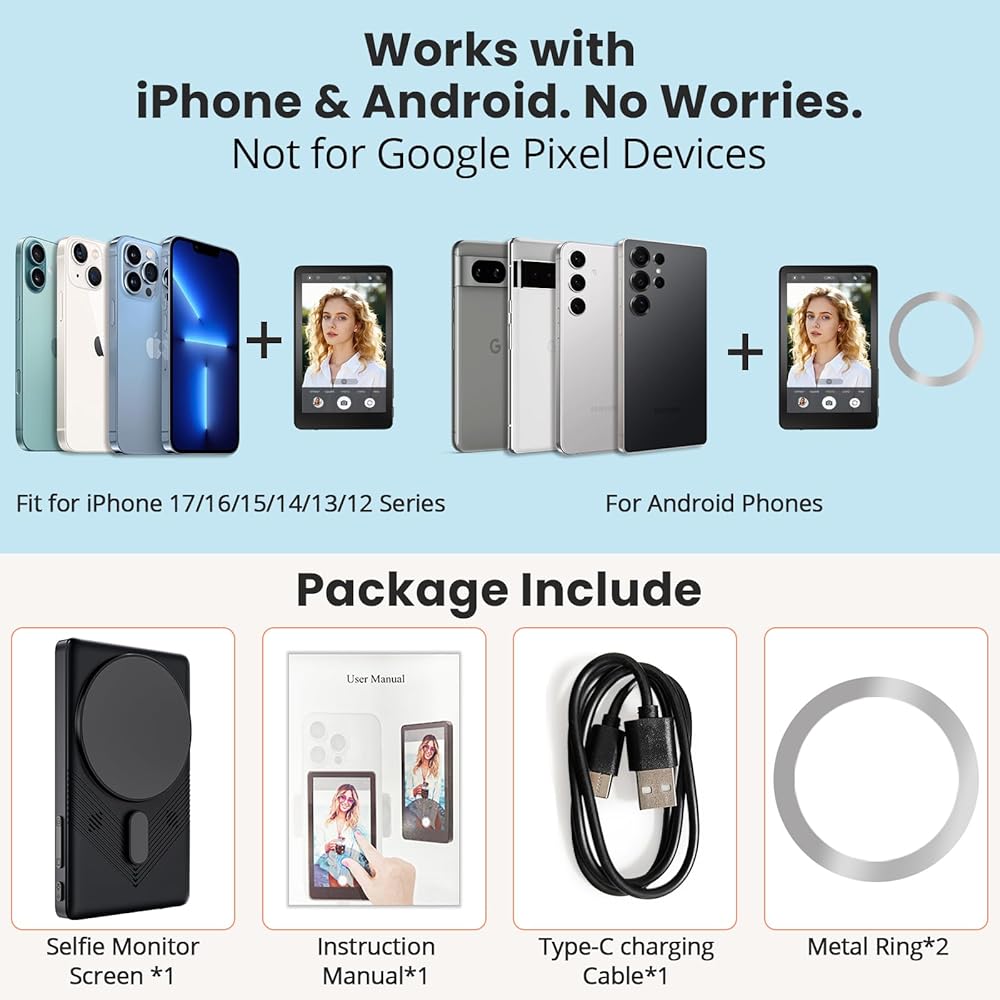
Touch Screen Selfie Monitor for iPhone, Wireless 4K Magnetic Back Camera Monitor, Phone Second Screen with Speaker & Reverse Control for Real-Time Vlogging, Live Streaming & Content Creation
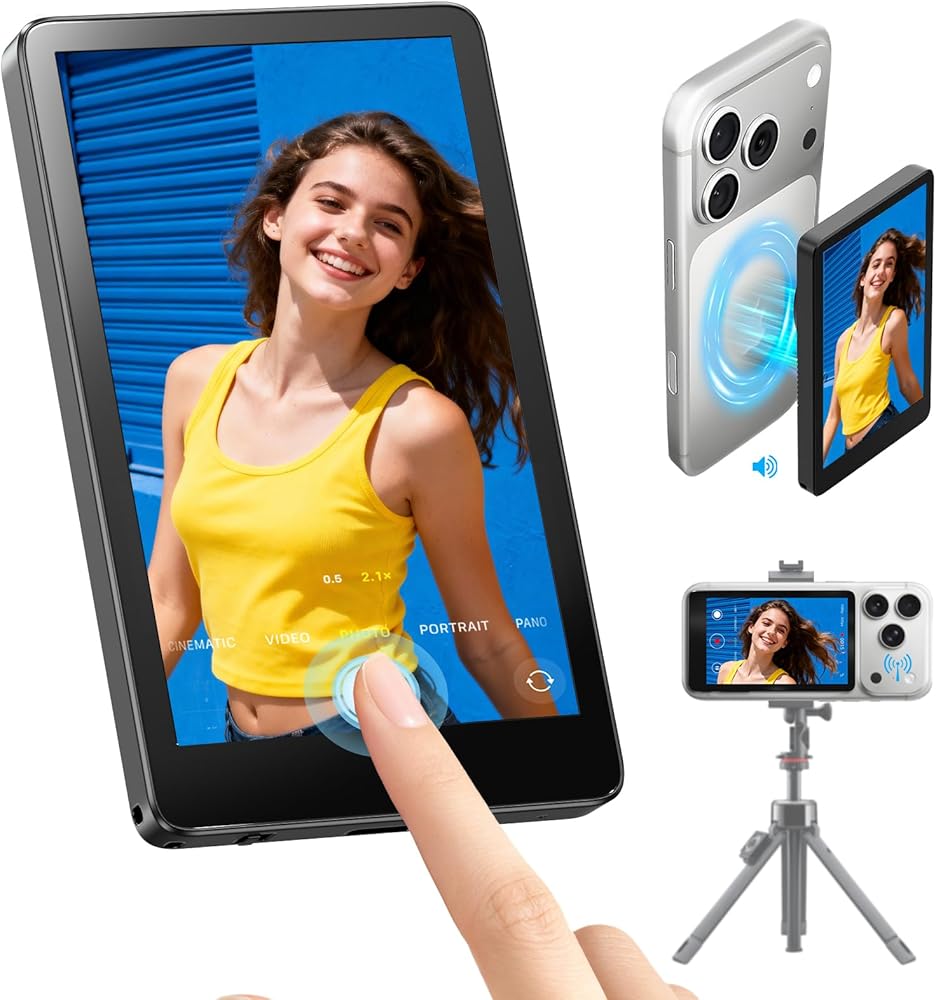
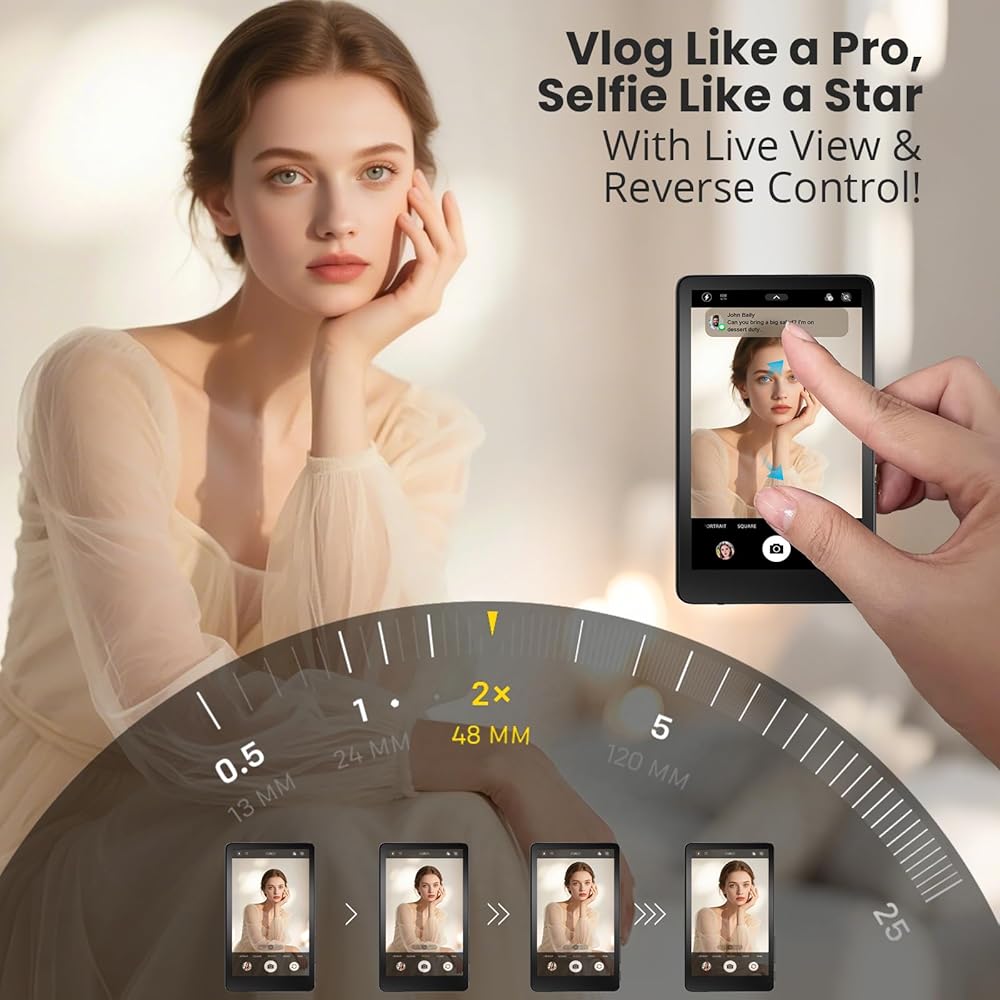
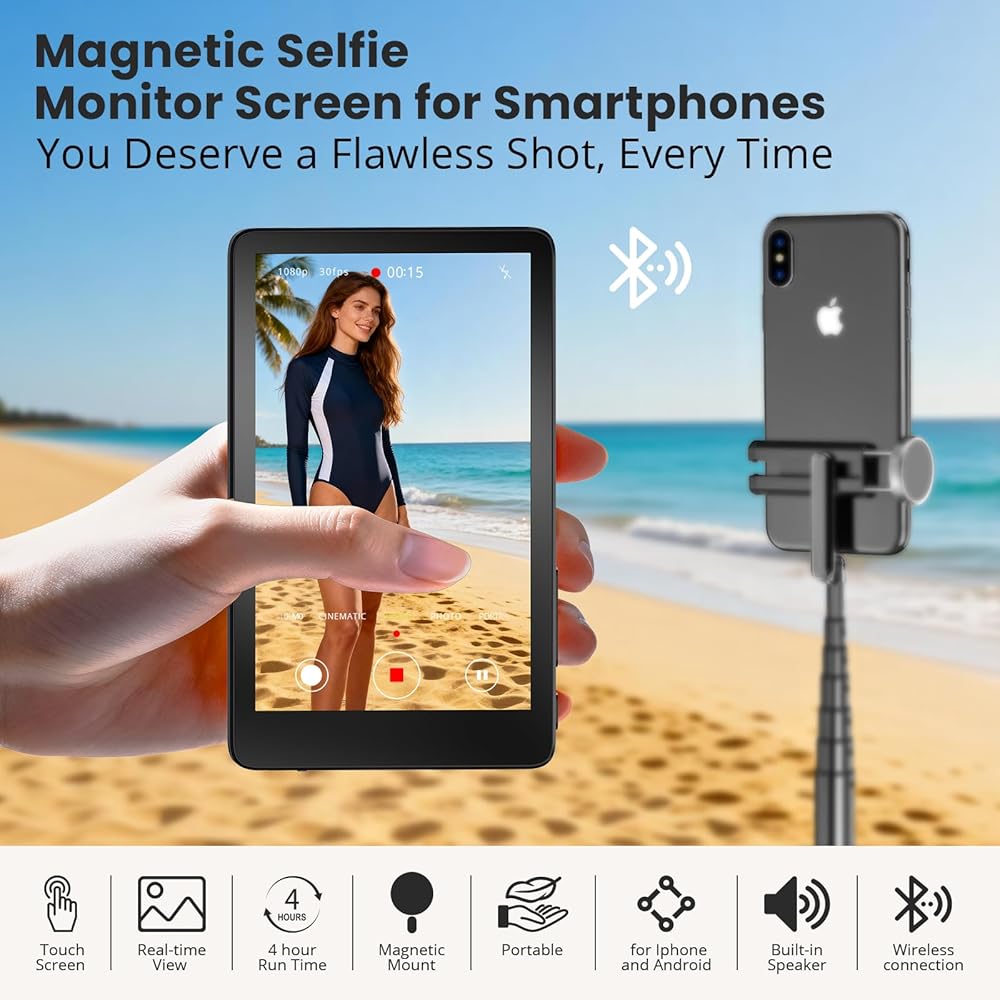
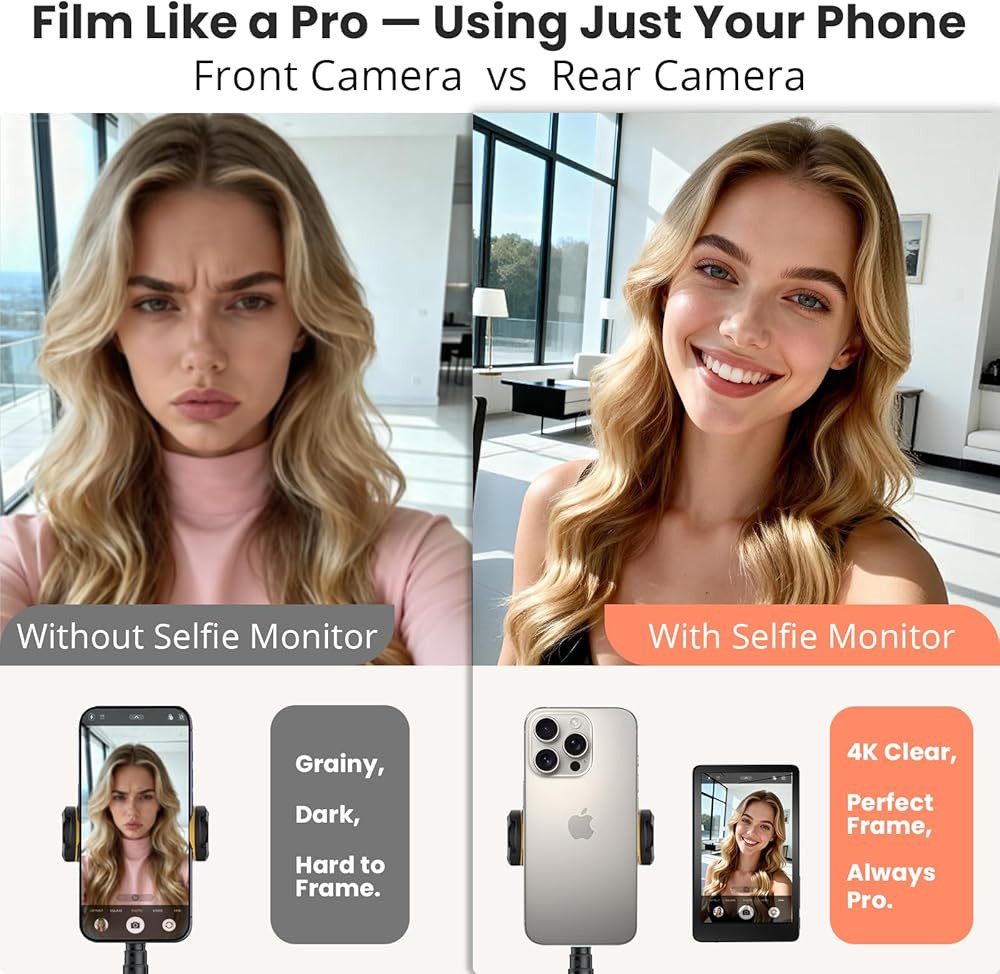
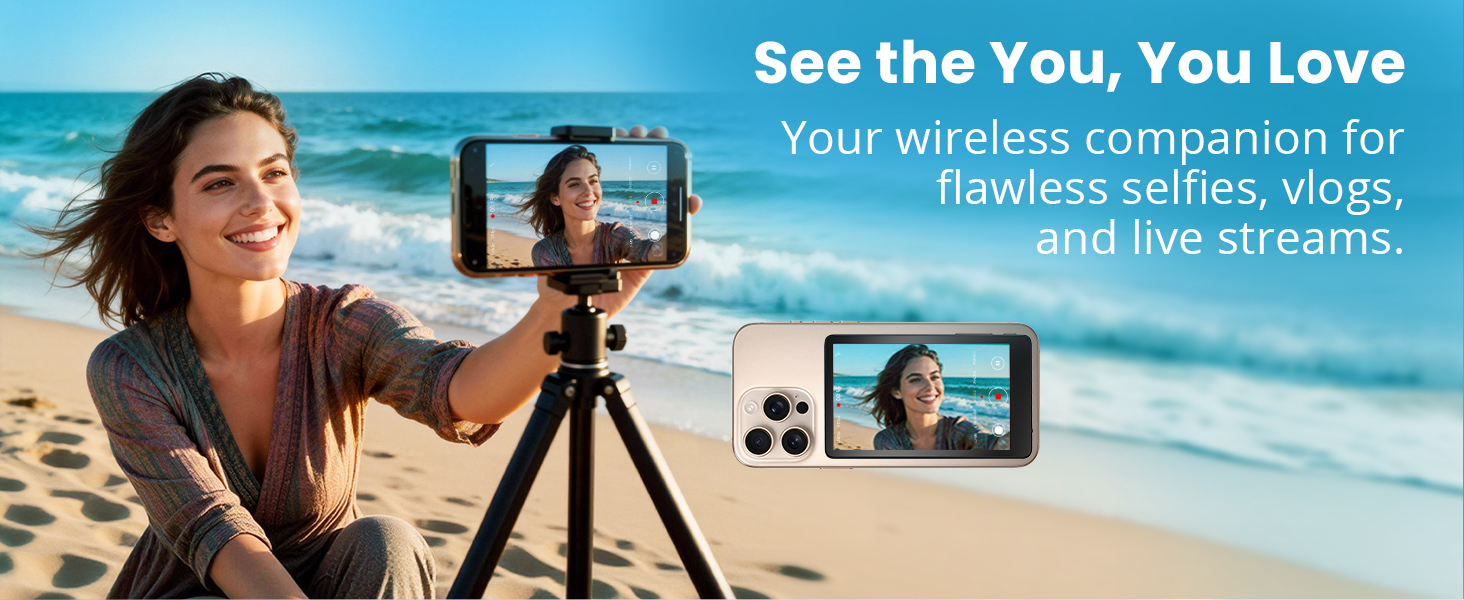
See Yourself While Filming: Stop guessing your frame! Our phone monitor screen gives you a real-time view of your phone's rear camera, ensuring you are perfectly framed and in focus for every shot. Capture sharper, brighter, and more professional-looking videos for TikTok, YouTube, and Reels
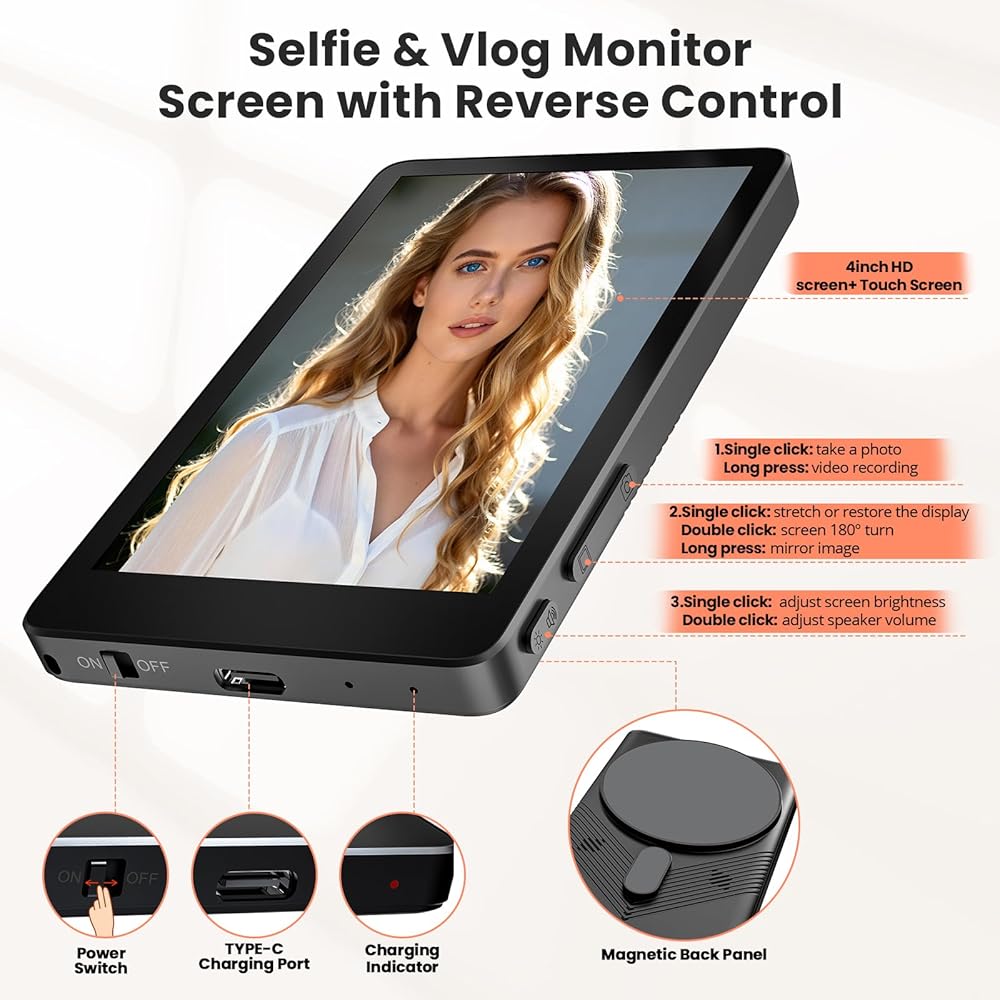
Full Touch Screen & Reverse Control: Take complete control without touching your phone. Use the responsive touch screen to zoom, adjust settings, and even use the unique reverse control to start/stop recording on your phone's back camera or view/share your contents from the monitor itself
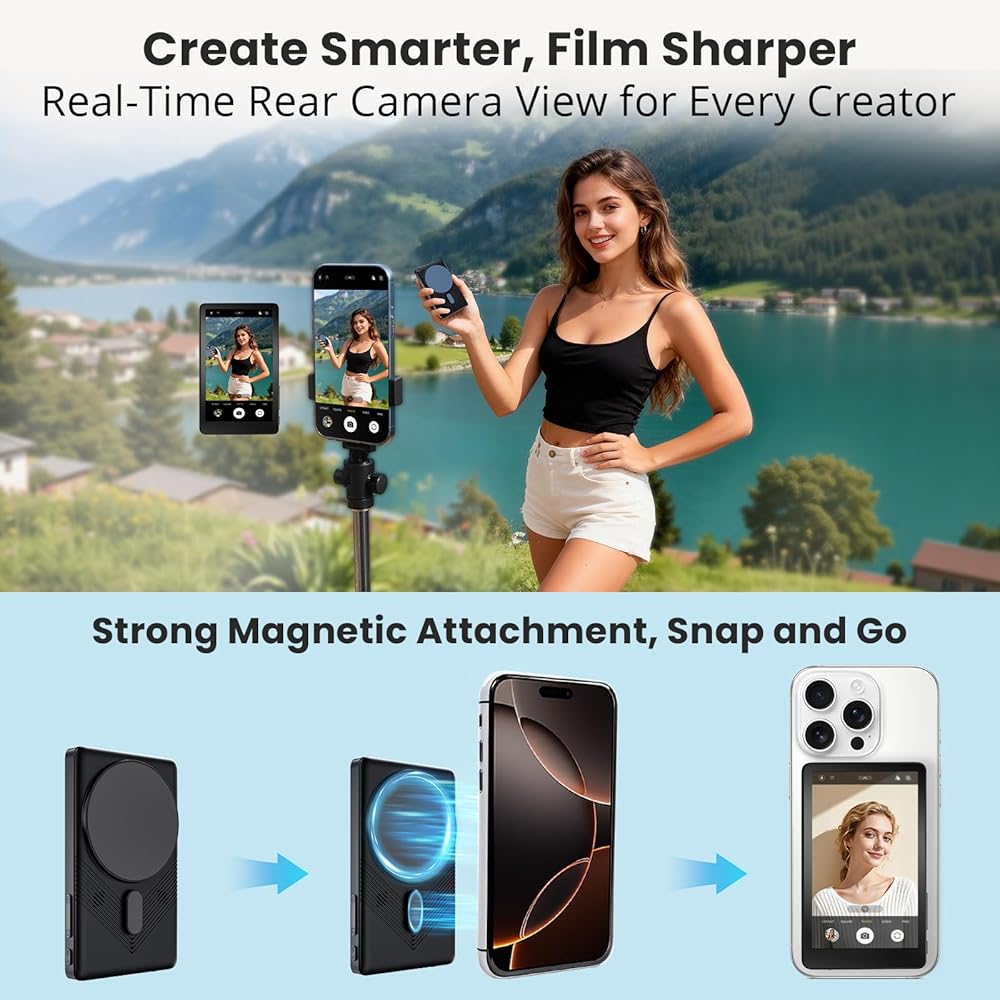
Magnetic and Easy Setup-No APP Needed:No cables, no complicated apps, no hassle. Just snap the monitor onto your phone (with MagSafe) or use the included metal ring for any smartphone, turn it on, 3 steps to connect and start filming instantly. It's the ultimate plug-and-play solution for creators on the go
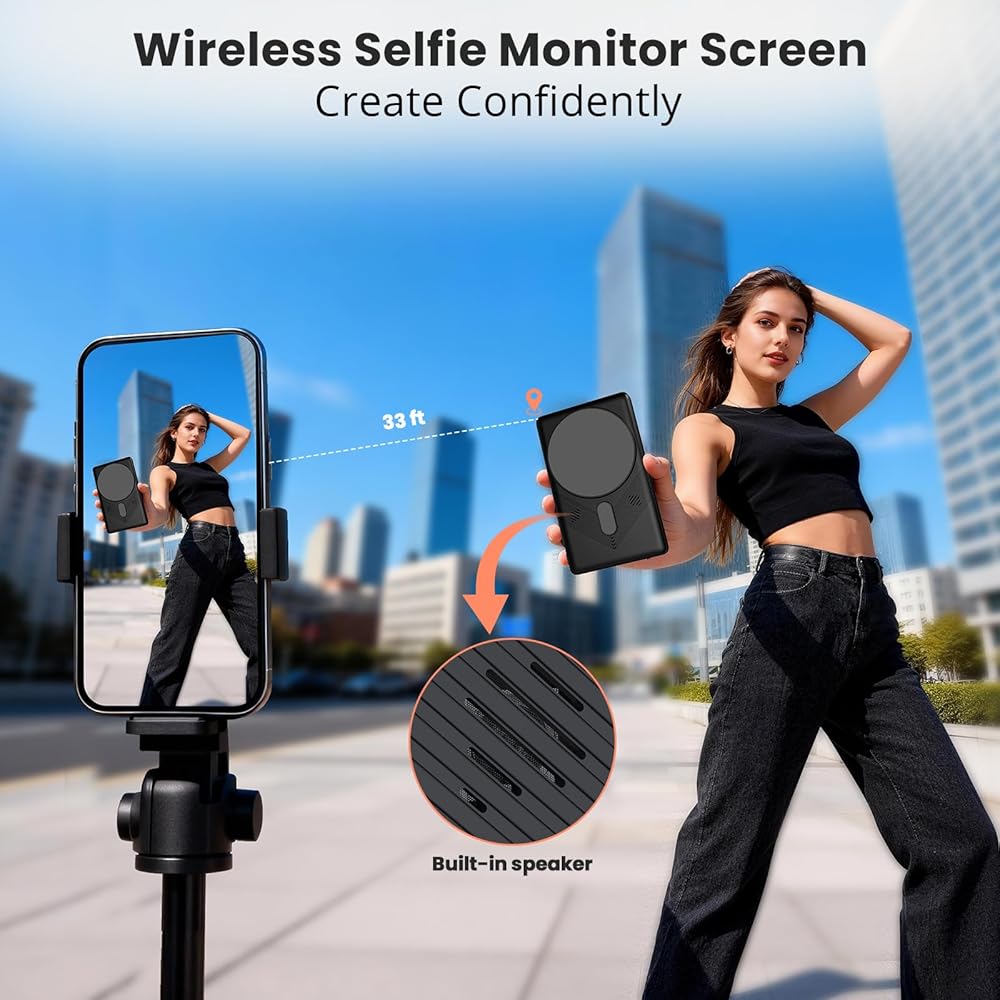
All-Day Power & Built-in Speaker: Never miss a moment. The built-in rechargeable battery offers 4 hours of continuous use, while the integrated speaker lets you hear what you record instantly, with near-zero delay between video and audio. Monitor recordings on the spot to minimize reshoots, and engage with live audiences in real time for more dynamic streaming
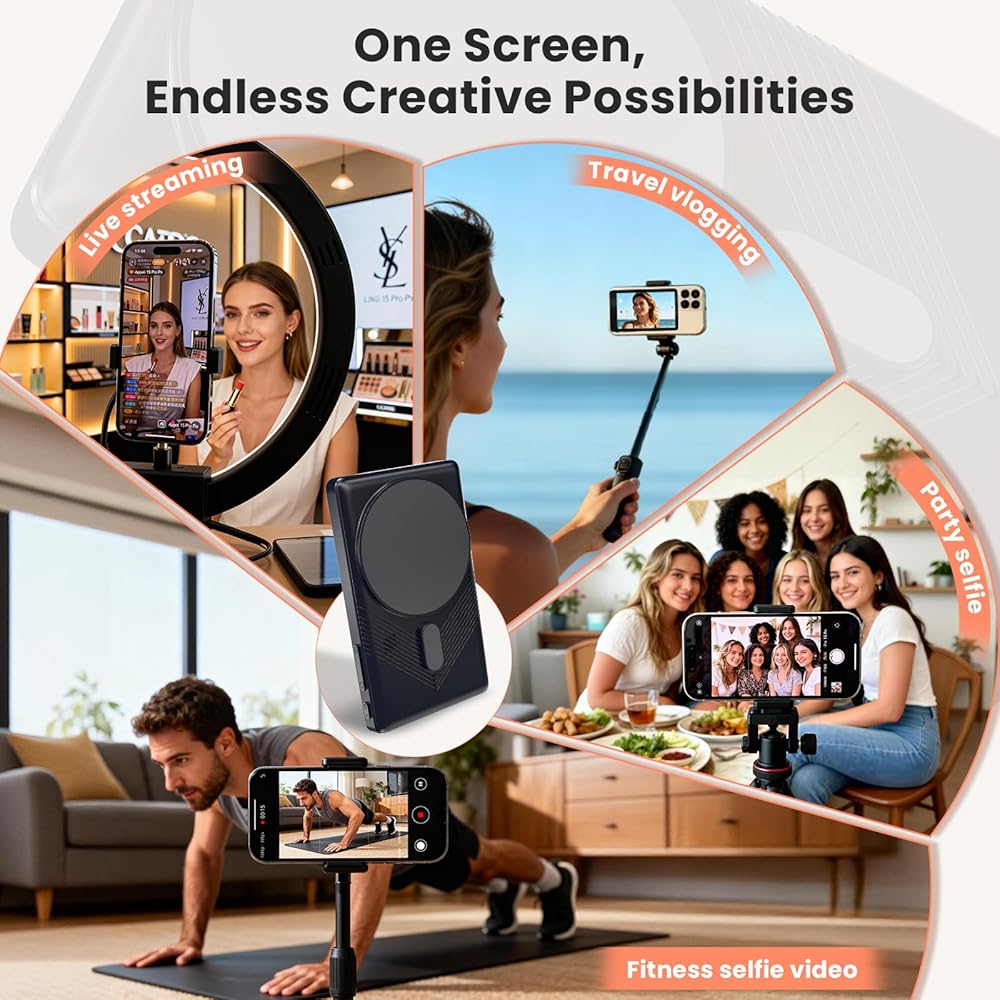
Ideal for Creators & Gift-Ready: Perfect for vloggers, streamers, online teachers, and anyone serious about content creation. A thoughtful gift for friends who love making videos or exploring new creator tech
Compatible with: iPhone 6s Plus and later (iOS 9+) including iPhone 17. Compatible with Samsung: Galaxy S24, V52, Z Fold 2, Fold 5. (Note: Not currently compatible with Google Pixel phones)
Helpful Tips for Setup: Ensure your phone's Wi‑Fi is on and the monitor's Bluetooth is unpaired from previous devices. Use verification code 1234 for iPhone screen mirroring. Enable the Zoom function in iPhone Accessibility settings for full touchscreen control (see video for guide). Customize preferences via the settings icon in the lower-right corner of the monitor

 OM Magnetic Mount for DJI Osmo Mobile 8/7P/7 Gimbal Stabilizer, Double-sided Magnetic Quick-Release Mount Retractable Extension for MagSafe Phone Compatible with OM Multifunctional Tracking Module
SAR 131
OM Magnetic Mount for DJI Osmo Mobile 8/7P/7 Gimbal Stabilizer, Double-sided Magnetic Quick-Release Mount Retractable Extension for MagSafe Phone Compatible with OM Multifunctional Tracking Module
SAR 131
 Magnetic Quick-Release Mount Adapter for DJI Osmo Mobile 8/7P/7, Smartphone Gimbal Stabilizer, Compatible with DJI OM Multifunctional Module/OM Tracking Module
SAR 131
Magnetic Quick-Release Mount Adapter for DJI Osmo Mobile 8/7P/7, Smartphone Gimbal Stabilizer, Compatible with DJI OM Multifunctional Module/OM Tracking Module
SAR 131
 3 Axis Handheld Ball Head Stabilizer Professional Focus Zoom Display Vlog Video Shooting Suitable for Smartphone Users
SAR 590
3 Axis Handheld Ball Head Stabilizer Professional Focus Zoom Display Vlog Video Shooting Suitable for Smartphone Users
SAR 590
 Tomum Magnetic Phone Selfie Light - Ring Lights Mirror Cell Phone Attachment Compatible for iPhone MagSafe Android with Magnetic Ring - Portable LED Fill Light for Selfies Camera Photo Video Recording
SAR 94
Tomum Magnetic Phone Selfie Light - Ring Lights Mirror Cell Phone Attachment Compatible for iPhone MagSafe Android with Magnetic Ring - Portable LED Fill Light for Selfies Camera Photo Video Recording
SAR 94