- التسوق ، اصبح سهلا.
- /
- احصل على التطبيق!
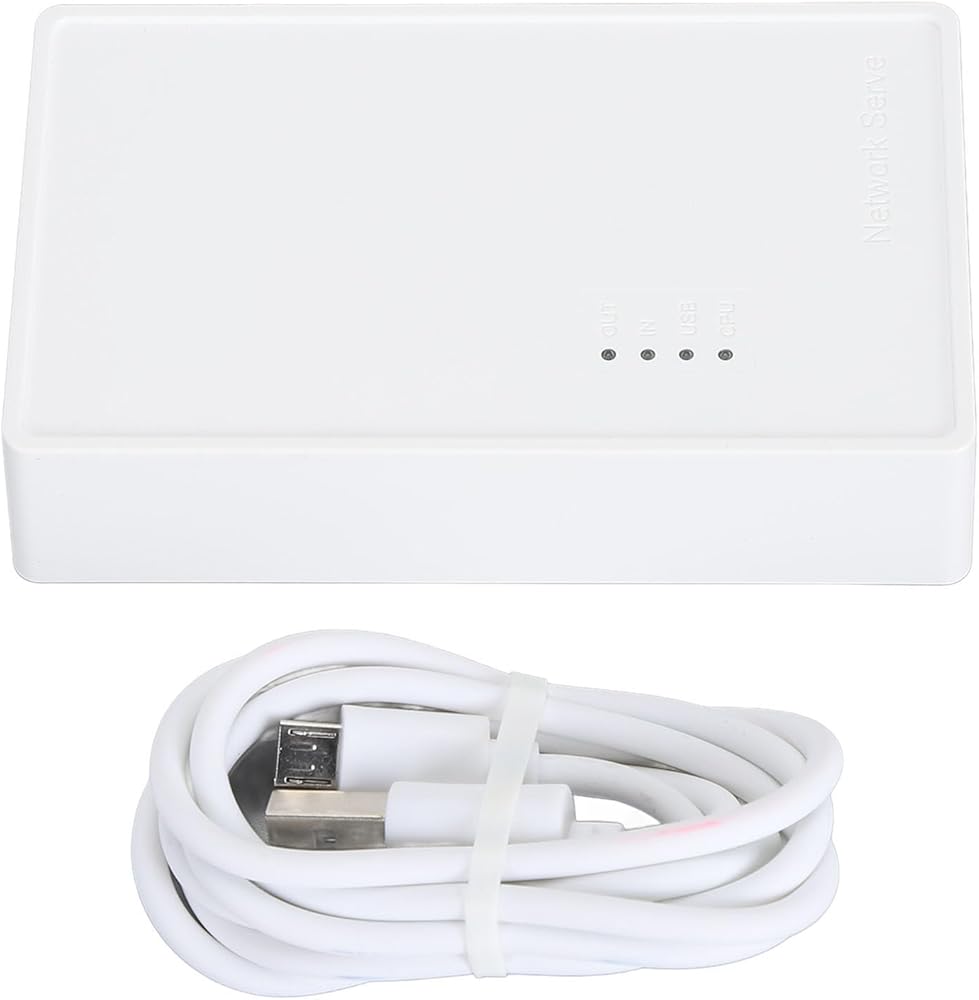
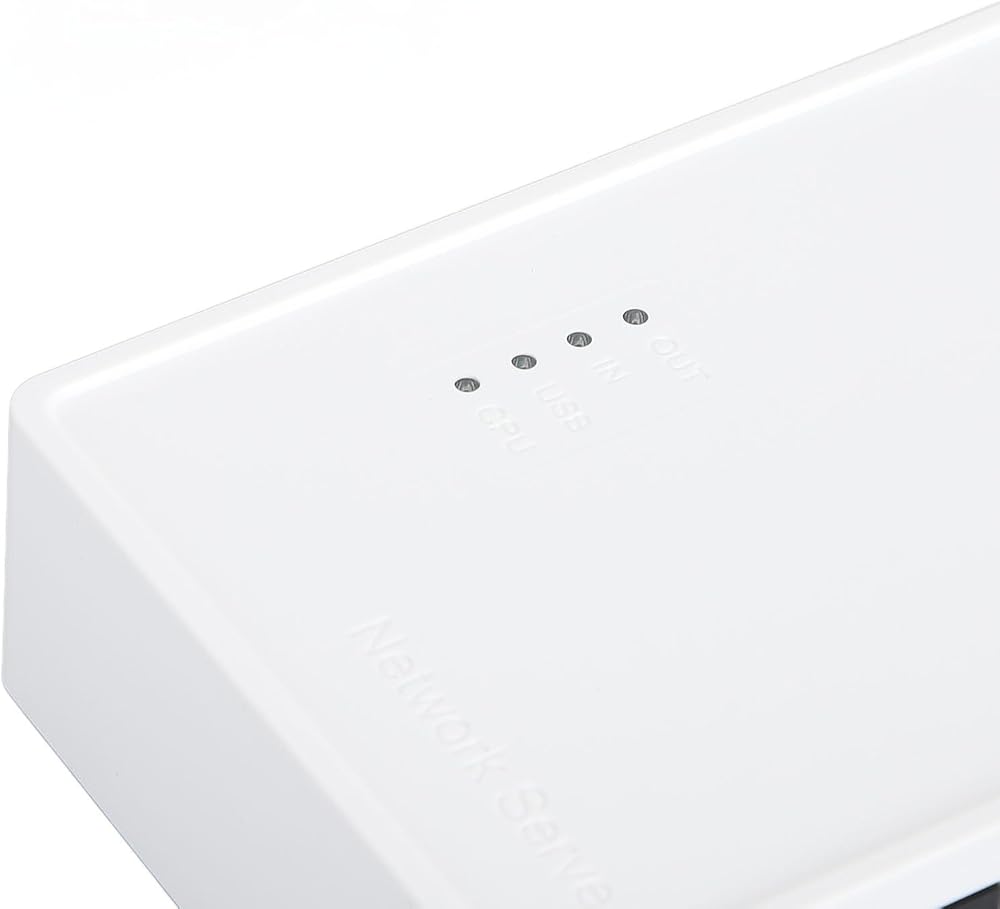
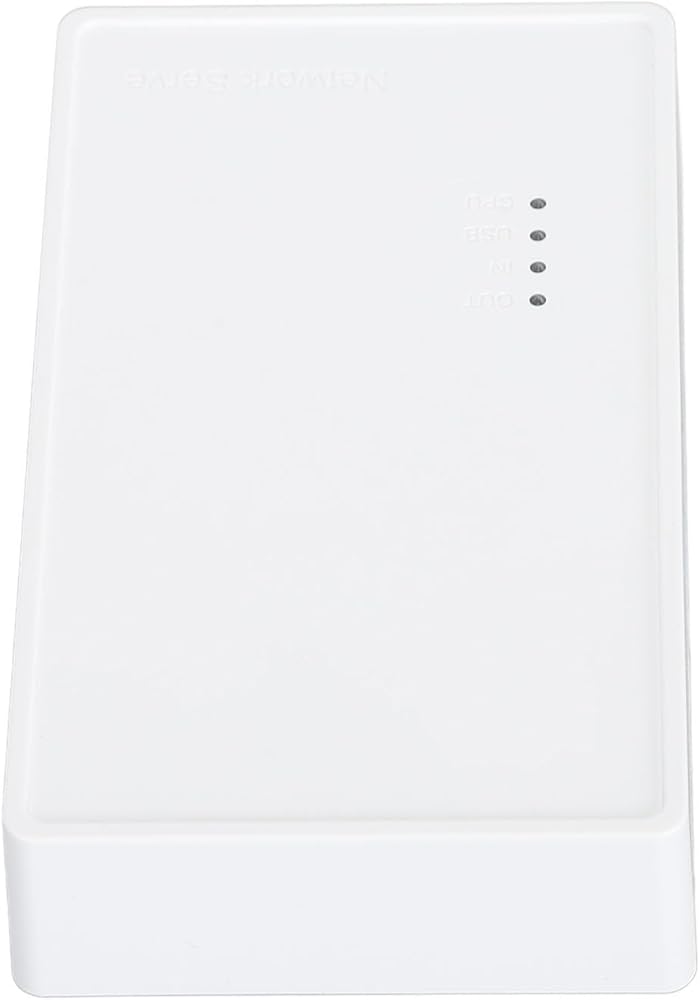
1. For multiple users: The print server turns your USB printer into a wireless printer. As long as it is on the same , you can easily access and use the printer no matter where the computer is located. In addition, with the help of a USB-A hub, this USB print server supports connecting 4 printers, which greatly improves the efficiency of printing files and is suitable for multiple people.
2. Various operating modes: The wireless printer adapter supports wired mode, 2.4G wireless mode and standalone mode, converting your USB printers into WiFi printers in different ways to meet your needs of using wireless printers in different places. Note: In standalone mode, you do not need to connect the parent router, but at the same time there is no access to the .
3. Web Management: Put an end to the annoying driver installation and complicated setting steps and enjoy one-stop printer and print server configuration via the web interface with the USB wireless print server. Note: No external driver is required for this print server. However, you need to download and install the printer driver from the official website and follow the quick guide to connect the printer to the computer.
4. Wide Compatibility: Compatible with 7/8/10/11/, for OS, barcode printer.
5. Widely used: and lightweight, you can place it anywhere. The high-speed 480Mbps USB2.0 port and 100Mbps bridge or LAN ports on the USB print server allow you to print in seconds and also support automatic queue printing, which is ideal for applications at home, small office, supermarket, educational institutions, etc. that require shared printers.
Technical dataification:
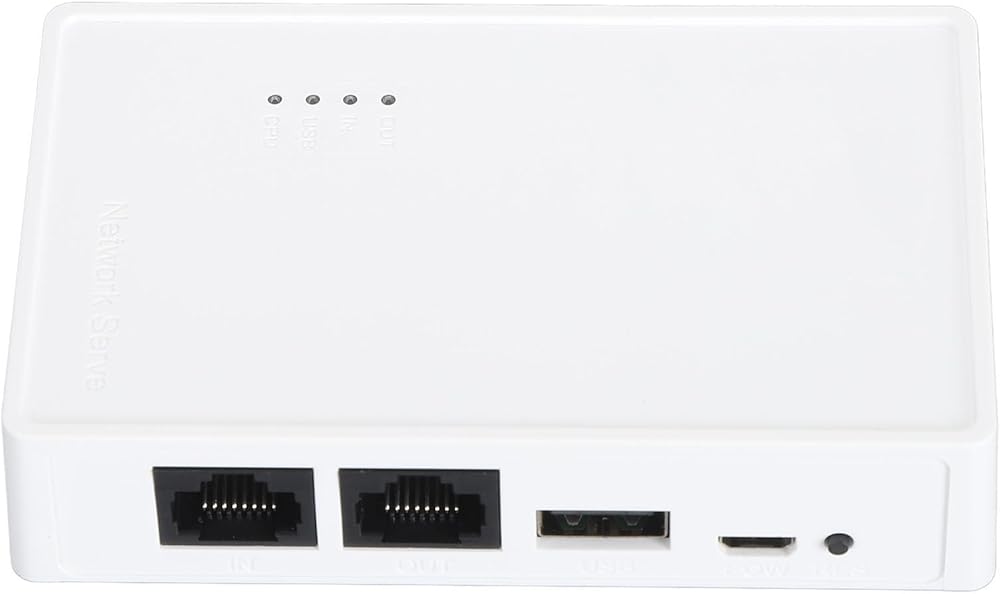
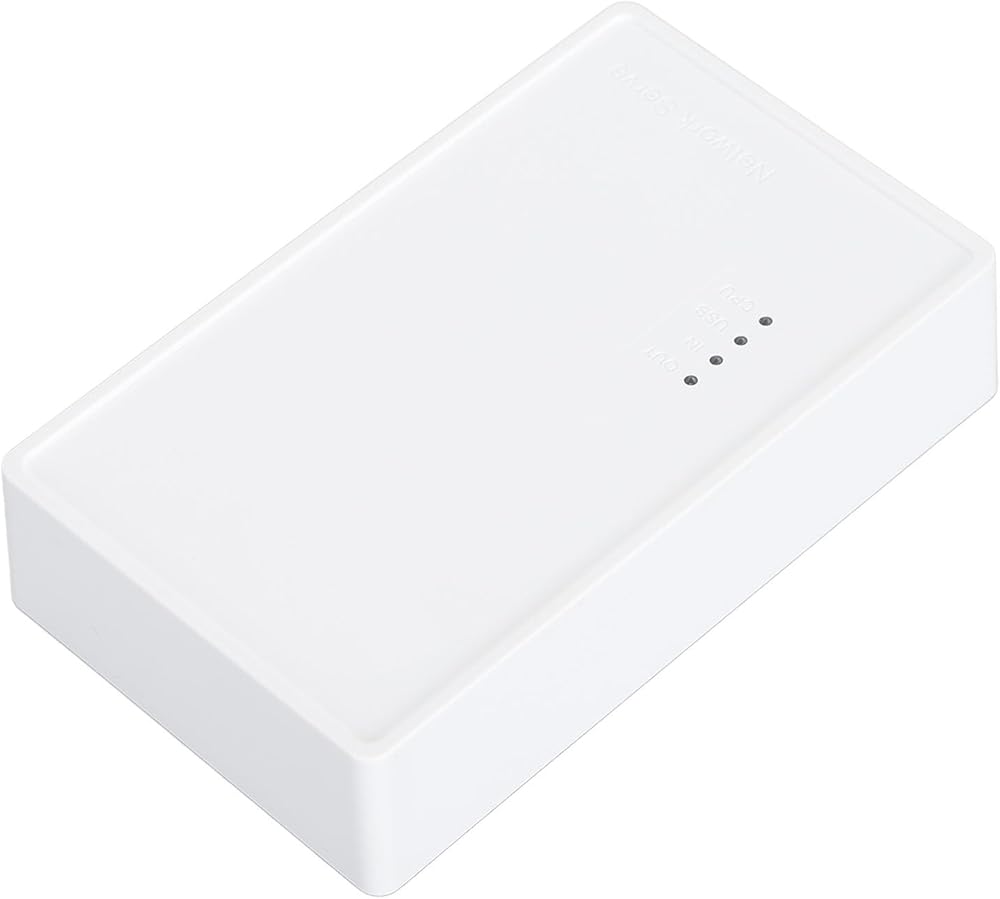
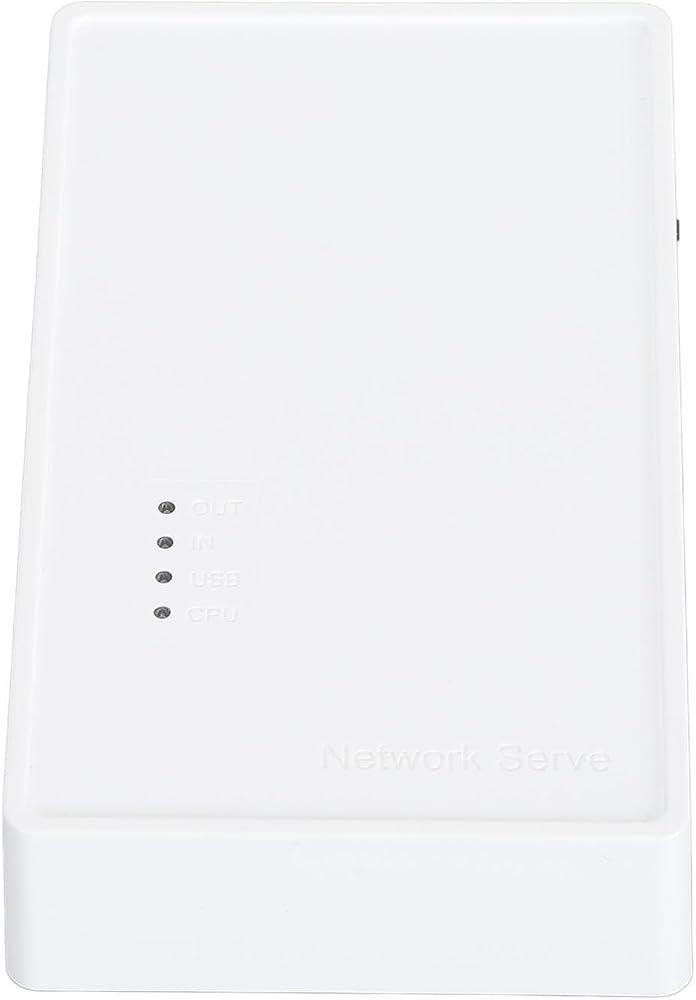
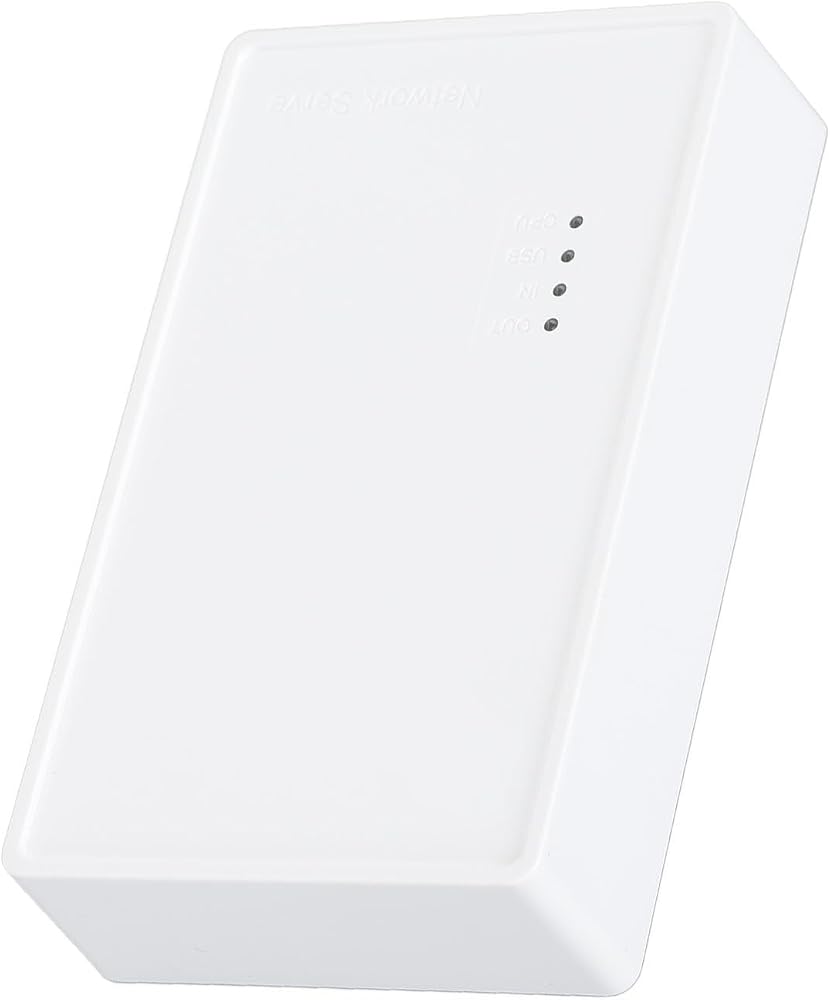
Item Type: USB Wireless Print Server
Material: ABS
Color: White
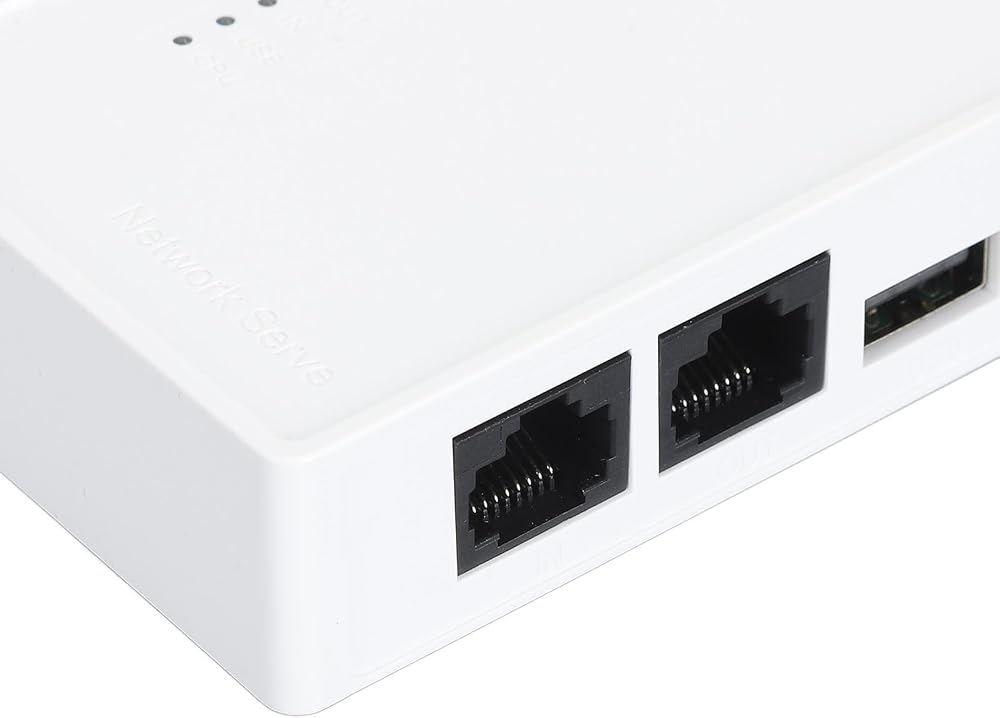
Output interface: Bridge (10/100 Mbit/s)
Input interface: LAN (10/100 Mbit/s)
Power connection: Micro USB
USB port: USB 2.0
Preparation:
1. Make sure the printer driver is installed on your computer and can print properly. (The easiest way to verify the driver installation is to connect the computer directly to the printer and see if it can print properly. This is a prerequisite for the print server to work properly.)
2. Connect the print server to power, connect the printer's USB print cable, and connect the local cable to the print server. (Connection diagram is on the packaging).
3. After the print server is turned on for 3 minutes, use your mobile phone to search for a WiFi signal with @MG_XXXX. The WiFi password is: 77777777 (8 sevens). A web page window will automatically appear on your phone, or you can access the web page using a mobile phone.
Setup on the computer:
After completing the above steps, go to “Devices” in your computer's Control Panel. Under Printers and Scanners, select the printer you want to set up and click Manage. (To ensure a smooth setup, ensure that the current computer can print properly by connecting it to the printer via a USB print cable. This will confirm that the driver is correct.)
1. Select Printer Properties.
2. Click Port, Add Port, select Default /IP Protection, click New Port.
3. Enter the IP address of the print server (see the previous guide to view the IP address of the print server via mobile phone), click the following and wait 1 minute.
4. Be sure to select Custom
5 out. Finished and ready to use
List of packages:
1 x USB Print Server
1 x Power Cord
Note:
Common troubleshooting:
Q: My settings are all normal, but the computer just can't print.
A: Check if the printer is offline. Check if the title appears offline in the print queue. If so, clear the check box so the printer can be used again.
Q: My printer can print, but it continuously prints paper.
A: Go to printer properties and port and uncheck “Enable bi-directional support”.
Note: The product does not include a USB adapter for shipping. You need to bring your own DV5V 1A USB adapter.
 ملابس التقاط الصور للحيوانات اللطيفة للأطفال من SUNGOOYUE، ملابس صوفية على شكل خنزير للأطفال الرضع من عمر 0 إلى 3 أشهر()
SAR 94
ملابس التقاط الصور للحيوانات اللطيفة للأطفال من SUNGOOYUE، ملابس صوفية على شكل خنزير للأطفال الرضع من عمر 0 إلى 3 أشهر()
SAR 94
 راوتر واي فاي خارجي 4G LTE مع فتحة لبطاقة Sim، جهاز نقطة اتصال الجيب لفتح القفل بسرعة 300 ميجا بت في الثانية، راوتر شبكة لاسلكي أبيض
SAR 137
راوتر واي فاي خارجي 4G LTE مع فتحة لبطاقة Sim، جهاز نقطة اتصال الجيب لفتح القفل بسرعة 300 ميجا بت في الثانية، راوتر شبكة لاسلكي أبيض
SAR 137
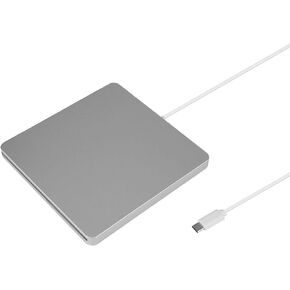 ناسخ أقراص DVD خارجي من SUNGOOYUE، فتحة تحميل، حرق هادئ، حرق زر واحد، نقل سريع للبيانات، التوصيل والتشغيل، توافق واسع
SAR 149
ناسخ أقراص DVD خارجي من SUNGOOYUE، فتحة تحميل، حرق هادئ، حرق زر واحد، نقل سريع للبيانات، التوصيل والتشغيل، توافق واسع
SAR 149
 محول محول البطارية متوافق مع محول طاقة بطارية ليثيوم 18 فولت من Bosch
SAR 212
محول محول البطارية متوافق مع محول طاقة بطارية ليثيوم 18 فولت من Bosch
SAR 212