- Shopping, made easy.
- /
- Get the app!
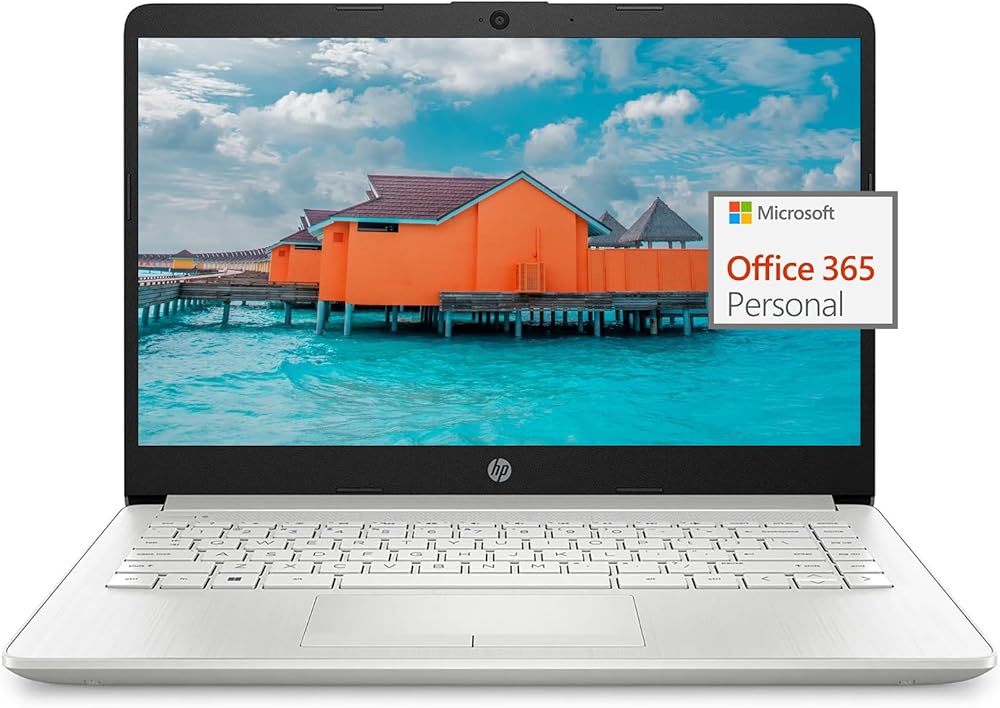
HP Laptop 14 inch for Student and Business Processor: Intel Celeron N4120, 4 Cores & Threads, 1.1GHz Base Clock, Up to 2.6GHz Boost Clock, 4MB Cache Graphics: Intel UHD Graphics 600 Display: 14" diagonal, HD (1366 x 768), micro-edge, BrightView, 220 nits Operating System: Windows 11 Home Memory: Upgraded to 8GB DDR4-2400 MHz RAM Storage: 64GB eMMC Ports: 1 x USB Type-C 5Gbps signaling rate (supports data transfer only and does not support charging or external monitors) 2 x USB Type-A 5Gbps signaling rate 1 x AC smart pin 1 x HDMI 1.4 1 x Headphone/microphone combo 1 x RJ-45 Wireless: Realtek RTL8821CE-M 802.11a/b/g/n/ac (1x1) Wi-Fi and Bluetooth 4.2 Camera: HP True Vision 720p HD camera Minimum dimensions (W x D x H): 12.76 x 8.89 x 0.78 in Weight: 3.25 lb Color: Natural Silver How to switch s mode to windows 11 1. On your PC running Windows 11 in S mode, open Settings > Update & Security > Activation. 2. In the Switch to Windows 11 Home or Switch to Windows 11 Pro section, select Go to the Store. (If you also see an "Upgrade your edition of Windows" section, be careful not to click the "Go to the Store" link that appears there) 3. On the Switch out of S mode (or similar) page that appears in the Microsoft Store, select the Get button. After you see a confirmation message on the page, you'll be able to install apps from outside of the Microsoft Store
 HP Windows 11 Laptop 14 inch HD Screen with Microsoft Office and 1TB Cloud Storage (1-Year)| 16GB RAM|64GB eMMC & 64GB Card & 128GB Portable SSD| Intel 4-Core CPU| Wi-Fi| Ultra Light| White| RK Bundle
SAR 1,376
HP Windows 11 Laptop 14 inch HD Screen with Microsoft Office and 1TB Cloud Storage (1-Year)| 16GB RAM|64GB eMMC & 64GB Card & 128GB Portable SSD| Intel 4-Core CPU| Wi-Fi| Ultra Light| White| RK Bundle
SAR 1,376
 HP Envy 2-in-1 16" 2K Touch-Screen Laptop | Intel Core Ultra 7 155U |Intel Graphics | 5MP IR Camera | Backlit | Silver | 16GB RAM DDR5 | 1024GB SSD | Windows 11 Home | Bundle with Stylus Pen
SAR 3,195
HP Envy 2-in-1 16" 2K Touch-Screen Laptop | Intel Core Ultra 7 155U |Intel Graphics | 5MP IR Camera | Backlit | Silver | 16GB RAM DDR5 | 1024GB SSD | Windows 11 Home | Bundle with Stylus Pen
SAR 3,195
 -10%
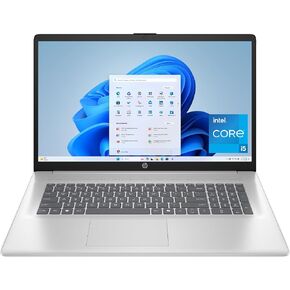
HP 17 inch Laptop, FHD Display, Intel Core i5-1334U, 16 GB RAM, 512 GB SSD, Intel Iris Xe Graphics, Windows 11 Home, Natural Silver, 17-cn3399nr
SAR 2,340
-10%
HP 17 inch Laptop, FHD Display, Intel Core i5-1334U, 16 GB RAM, 512 GB SSD, Intel Iris Xe Graphics, Windows 11 Home, Natural Silver, 17-cn3399nr
SAR 2,340
 HP 14 inch Laptop, HD Touchscreen Display, AMD Ryzen 5 7520U, 8 GB RAM, 512 GB SSD, AMD Radeon Graphics, Windows 11 Home, Natural Silver, 14-em0499nr
SAR 1,667
HP 14 inch Laptop, HD Touchscreen Display, AMD Ryzen 5 7520U, 8 GB RAM, 512 GB SSD, AMD Radeon Graphics, Windows 11 Home, Natural Silver, 14-em0499nr
SAR 1,667