- Shopping, made easy.
- /
- Get the app!
Processor:
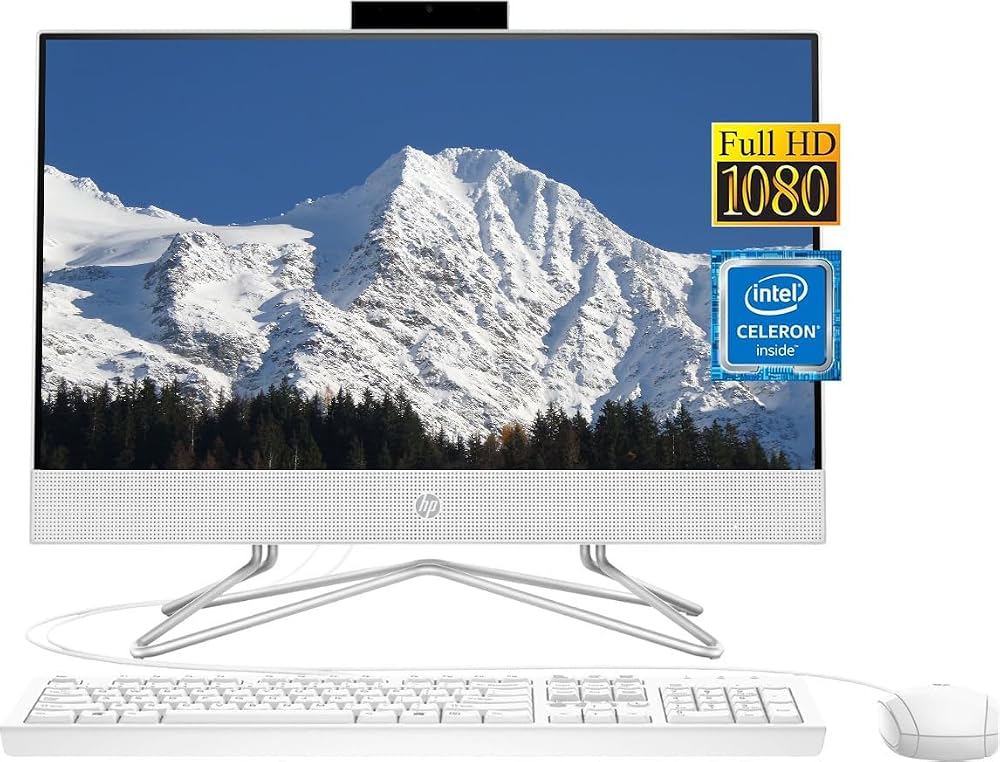
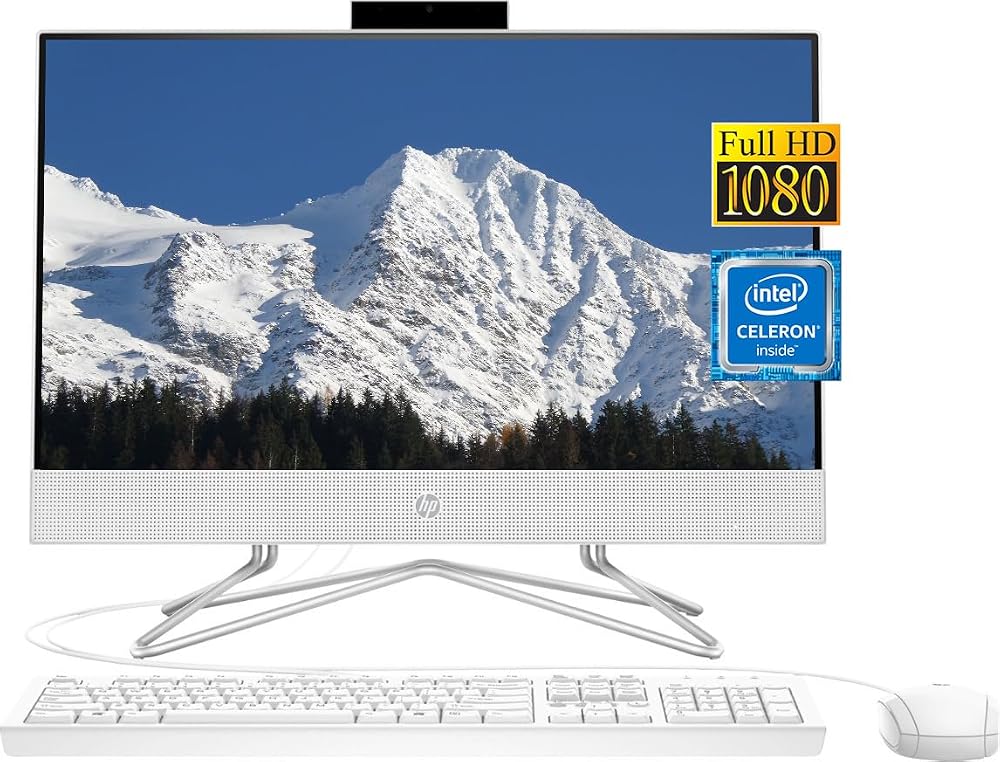
Intel Celeron J4025, 2 Cores & 2 Threads, 2.00 GHz Base Clock, Up to 2.90GHz Boost Clock
Graphics:
Intel UHD Graphics 600
Display:
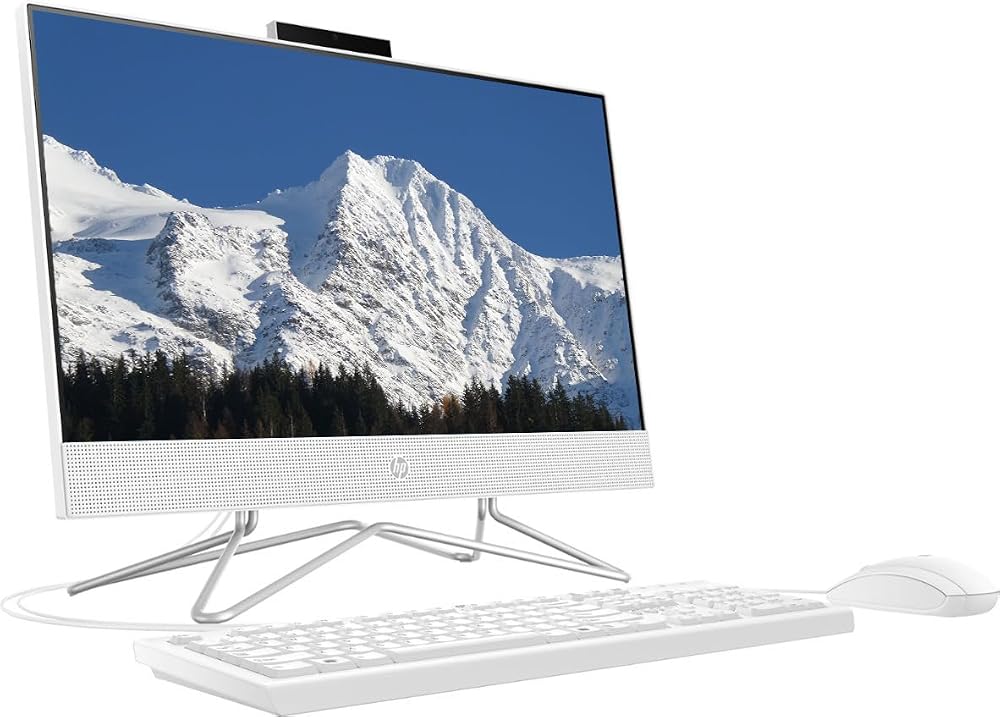
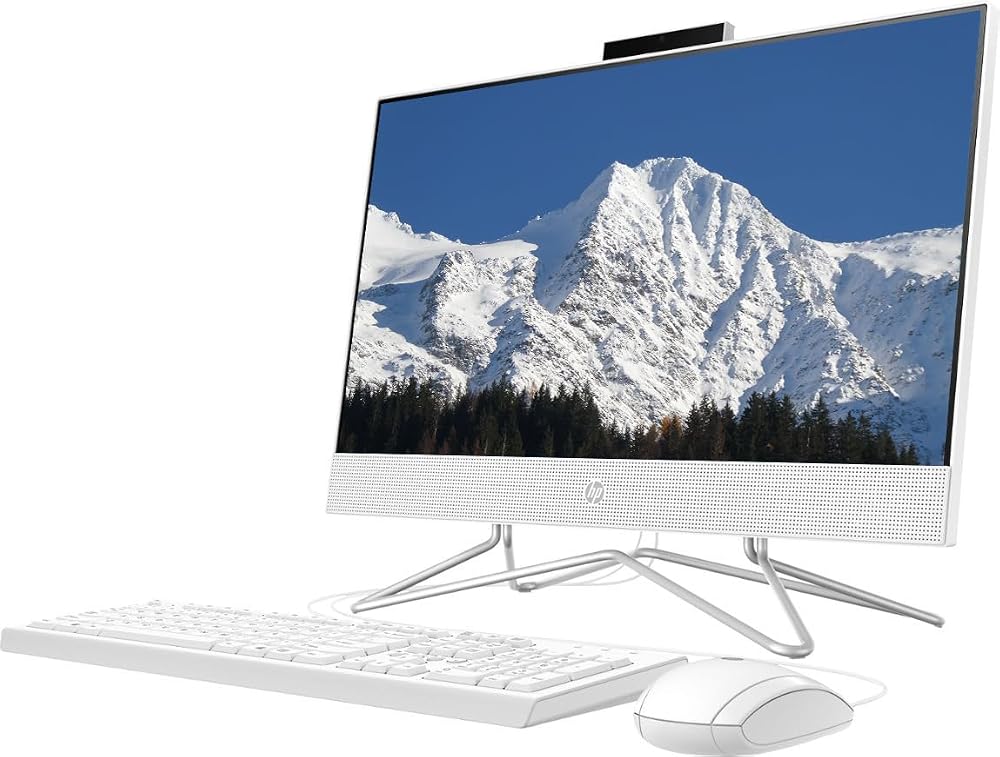
21.5" diagonal, FHD (1920 x 1080), VA, three-sided micro-edge, anti-glare, 250 nits, 72% NTSC
Operating System:
Windows 11 Home in s mode
Memory:
Upgraded to 8GB RAM
Storage:
Upgraded to 256B NVMe SSD
Ports:
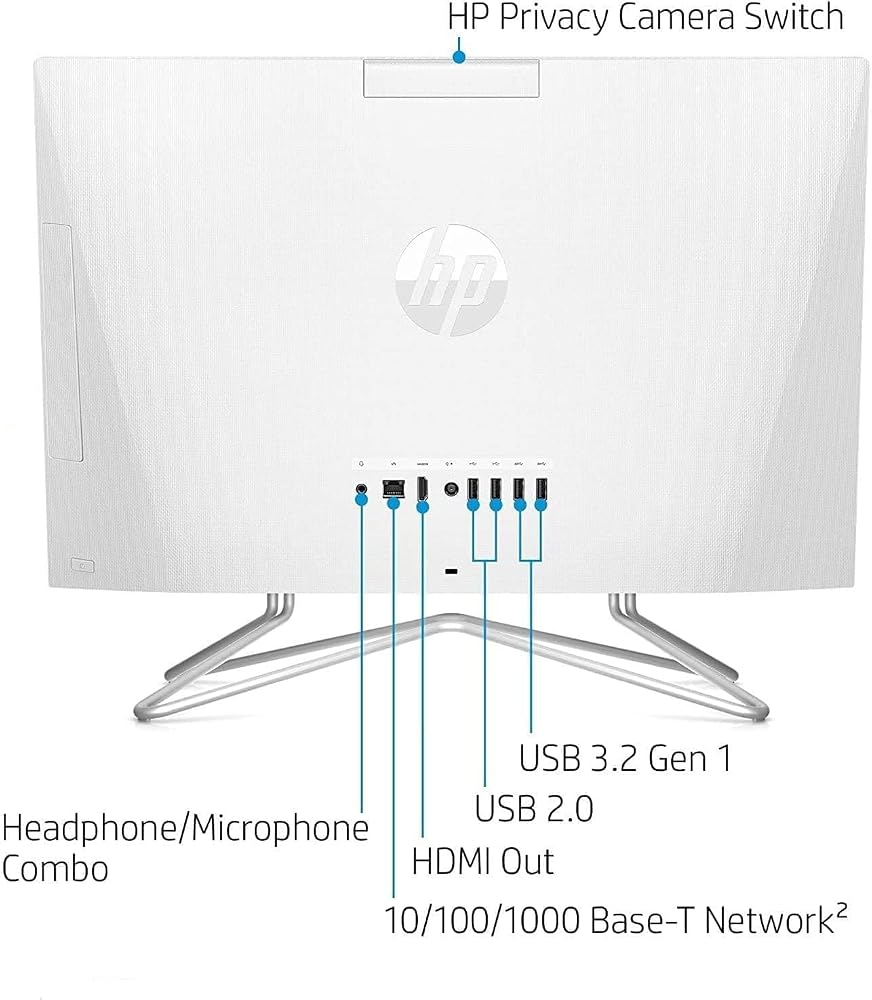
2 x SuperSpeed USB Type-A 5Gbps signaling rate
2 x USB 2.0 Type-A
1 x HDMI-out 1.4
1 x Headphone/microphone Combo
1 x RJ-45 10/100/1000 GbE LAN
Wireless:
Realtek RTL8821CE 802.11a/b/g/n/ac (1x1) Wi-Fi and Bluetooth 4.2 combo
Webcam:
HP True Vision 720p HD with integrated dual array digital microphones
Product Dimensions:
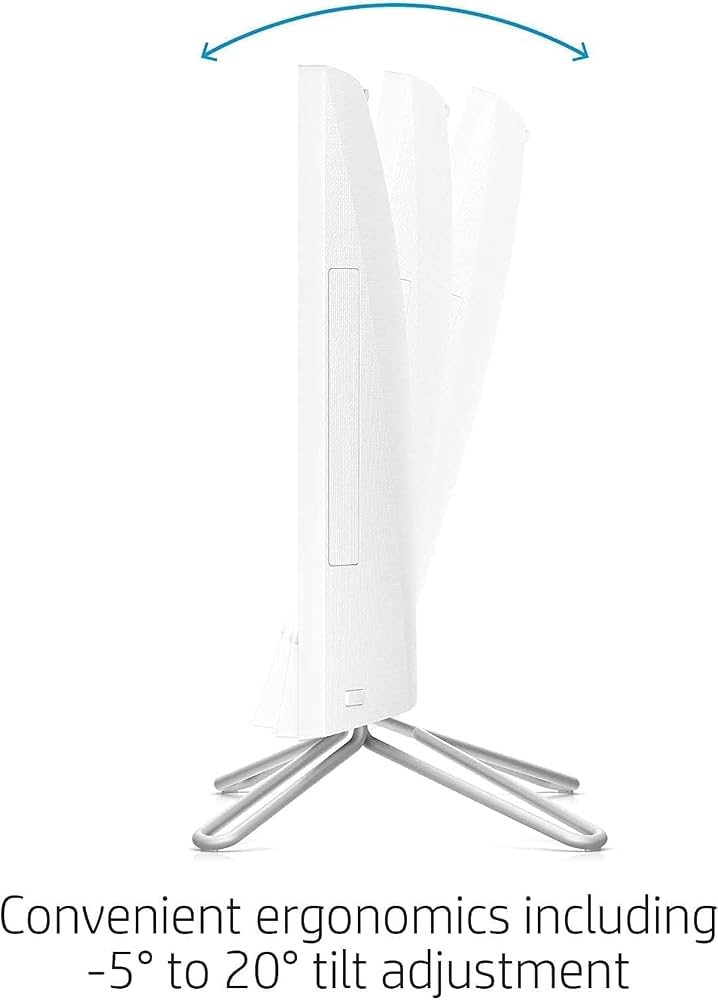
8.05 x 19.3 x 14.99 inches
Weight:
12.57lbs
How to switch s mode to windows 11
1. On your PC running Windows 11 in S mode, open Settings > Update & Security > Activation.
2. In the Switch to Windows 11 Home or Switch to Windows 11 Pro section, select Go to the Store. (If you also see an "Upgrade your edition of Windows" section, be careful not to click the "Go to the Store" link that appears there)
3. On the Switch out of S mode (or similar) page that appears in the Microsoft Store, select the Get button. After you see a confirmation message on the page, you'll be able to install apps from outside of the Microsoft Store
 HP Desktop PC, AMD Ryzen 3 4300G Processor, 8 GB of RAM, 512 GB SSD Storage, Windows 11, High Speed Performance, Computer, 8 USB Ports, for Business, Study, Videos, and Gaming (M01-F1120, 2021)
SAR 2,447
HP Desktop PC, AMD Ryzen 3 4300G Processor, 8 GB of RAM, 512 GB SSD Storage, Windows 11, High Speed Performance, Computer, 8 USB Ports, for Business, Study, Videos, and Gaming (M01-F1120, 2021)
SAR 2,447
 HP All-in-One PC Desk Computer, 21.5" Full HD Micro-Edge Display, AMD Ryzen 3 Processor, AMD Radeon Graphics, 8 GB SDRAM, 256 GB SSD, Windows11 Home OS, MU-MIMO, Bluetooth, and Wi-Fi (22-dd0032, 2022)
SAR 2,321
HP All-in-One PC Desk Computer, 21.5" Full HD Micro-Edge Display, AMD Ryzen 3 Processor, AMD Radeon Graphics, 8 GB SDRAM, 256 GB SSD, Windows11 Home OS, MU-MIMO, Bluetooth, and Wi-Fi (22-dd0032, 2022)
SAR 2,321
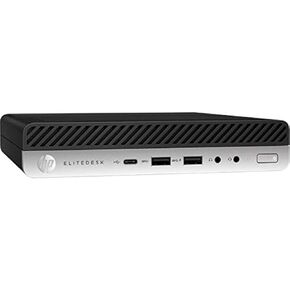 HP 800 G4 Mini Desktop PC, Intel Core i5 8500T, 16GB RAM, 256GB SSD, Win10Pro (Renewed)
SAR 1,242
HP 800 G4 Mini Desktop PC, Intel Core i5 8500T, 16GB RAM, 256GB SSD, Win10Pro (Renewed)
SAR 1,242
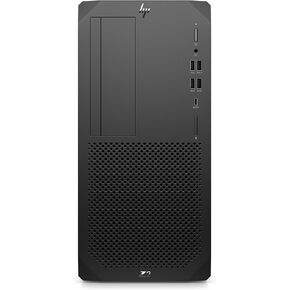 HP Z2 WS G5 TWR I7/2.9 8C 16GB 512GB W10P
SAR 2,657
HP Z2 WS G5 TWR I7/2.9 8C 16GB 512GB W10P
SAR 2,657