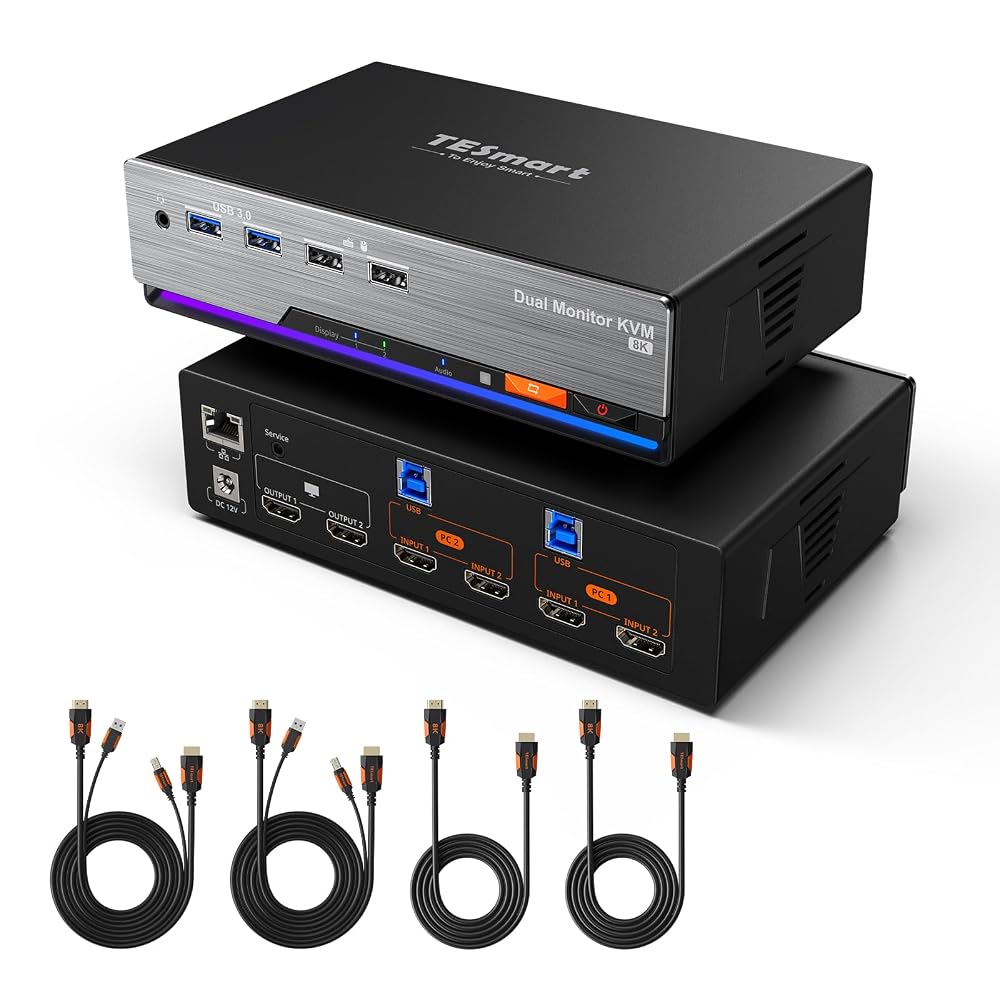
TESmart 8K@60Hz HDMI KVM Switch 2 Monitors 2 Computers USB 3.0, HDMI KVM Switch Dual Monitor 4K@144Hz for Gaming Dock, Support EDID, Gigabit Network, Hotkey Switch, Audio & Mic with All Input Cables For 2 Monitor & 2 PC (HDMI)
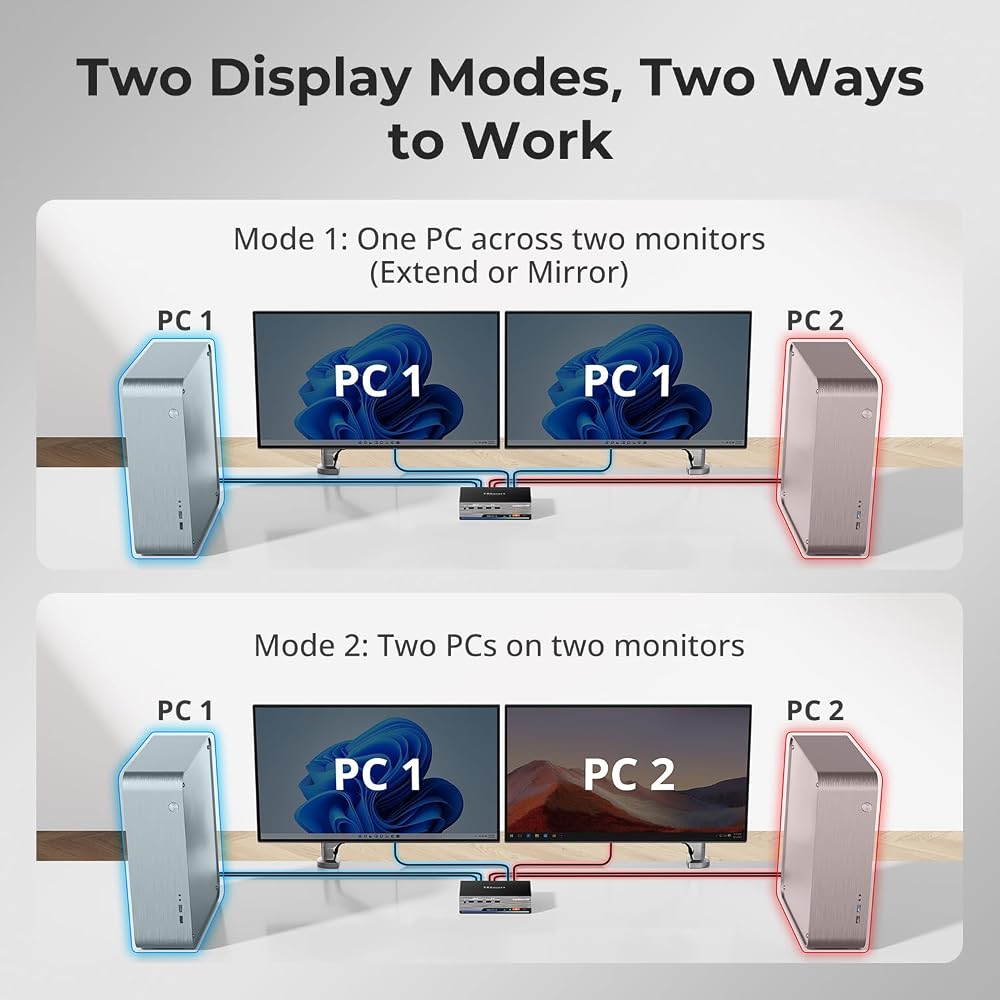
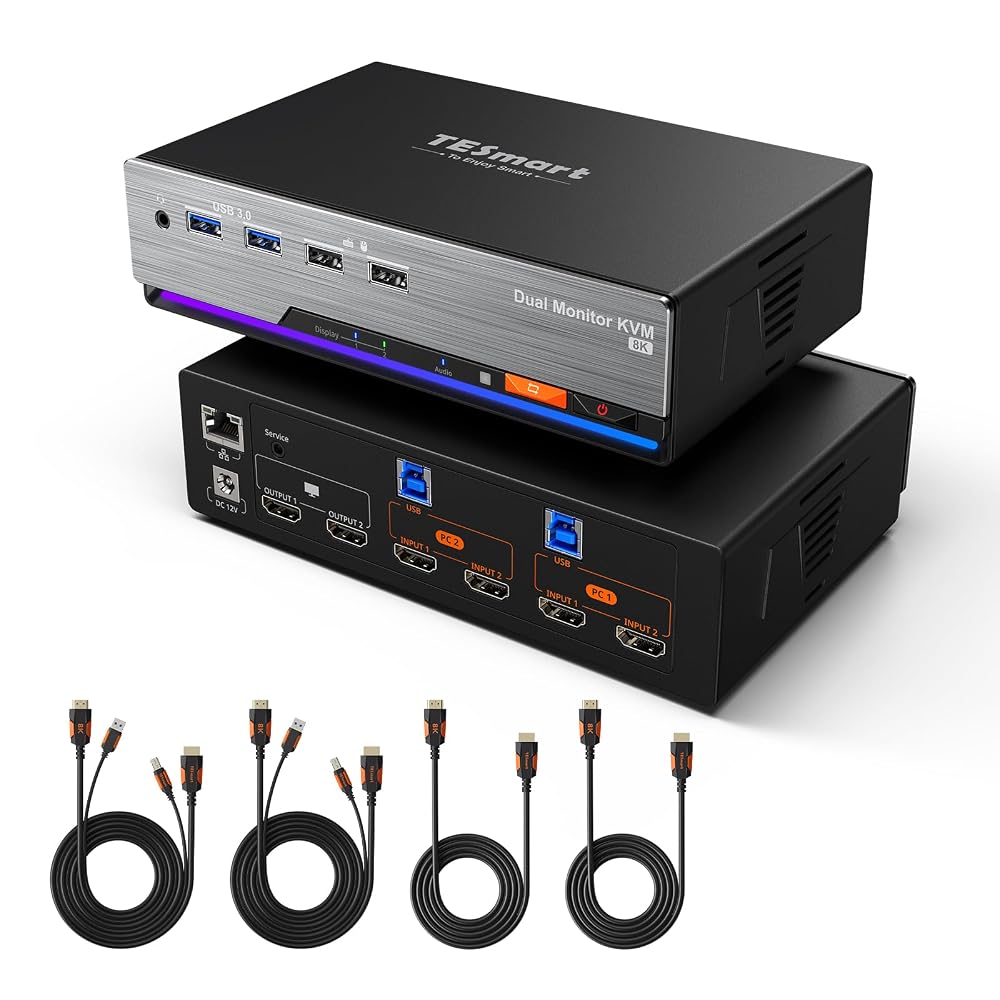
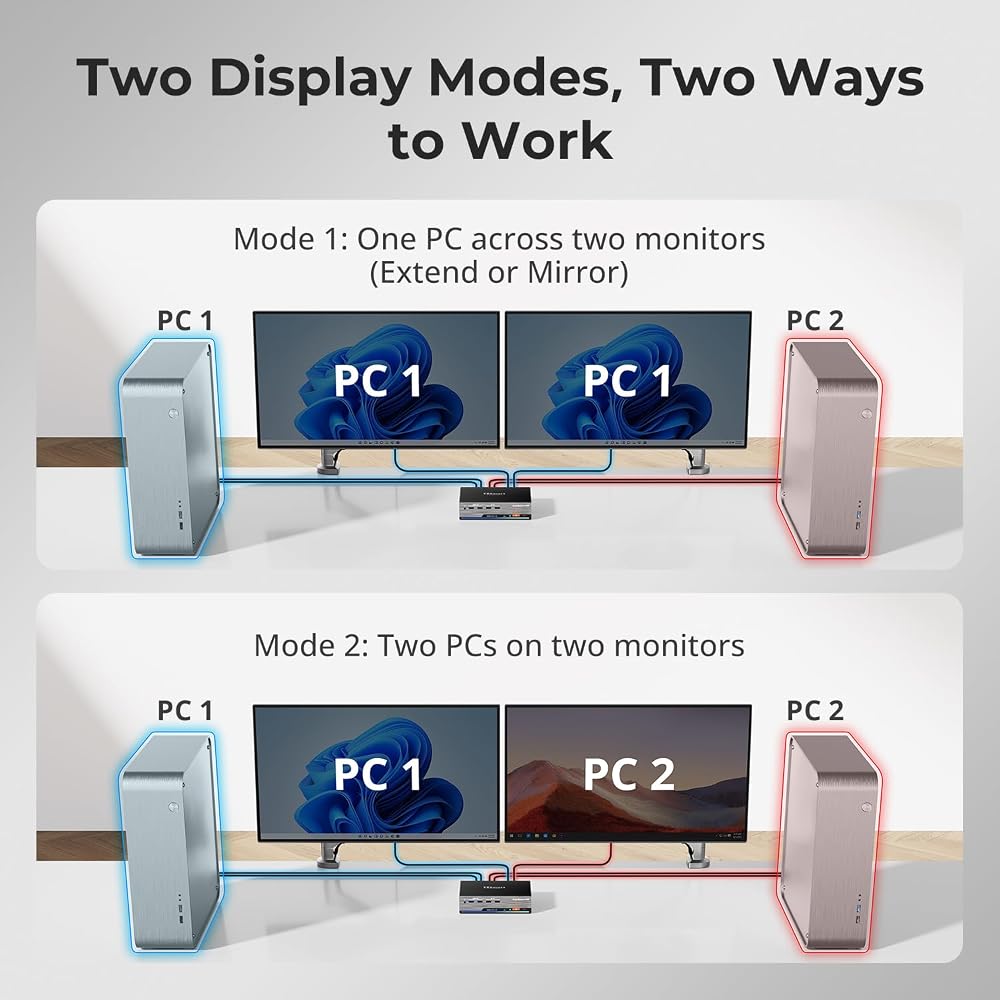
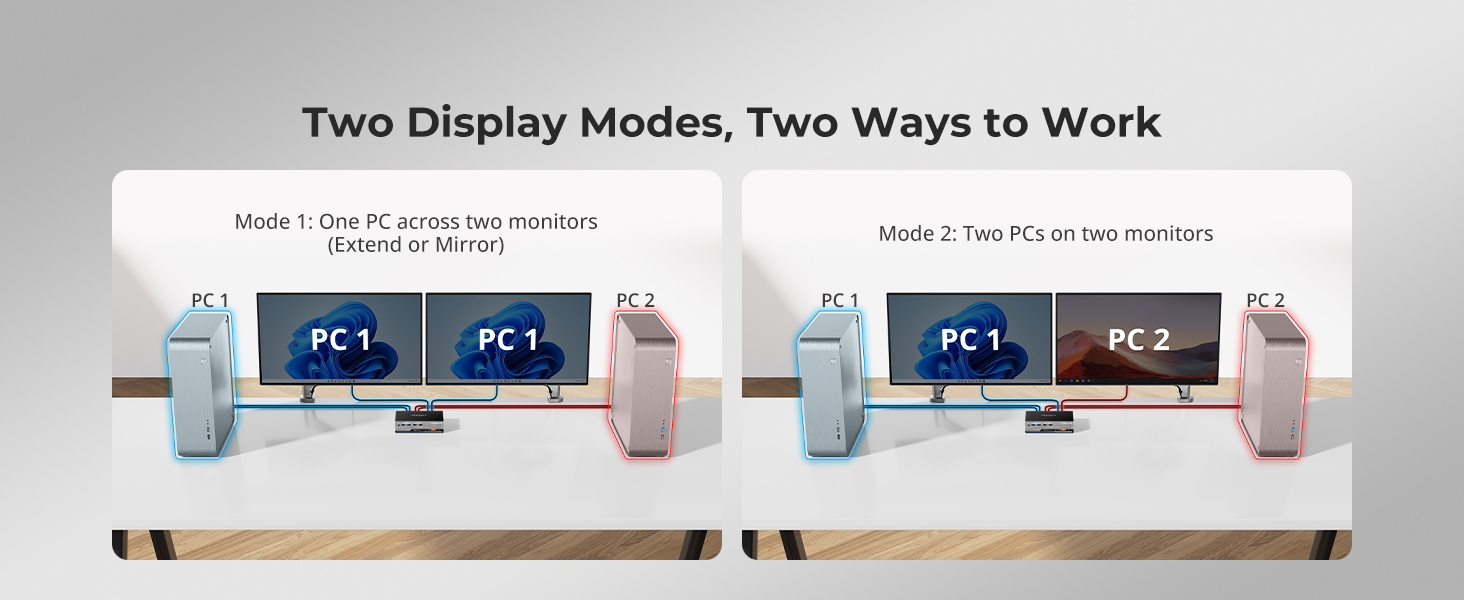
A dedicated HDMI 2.1 KVM solution for two HDMI computers and two HDMI monitors. Each connected PC or laptop must provide 2× HDMI outputs, and your monitors connect through HDMI only. This KVM does not include DisplayPort or USB-C video ports. Laptop users may need a USB-C to HDMI adapter or cable, or may explore TESmart USB-C KVM models HDC202-P23 and CKS202-P23. For DisplayPort workstation setups, TESmart DKS202-M24 and DKS203-M24 provide native 8K DP connectivity.
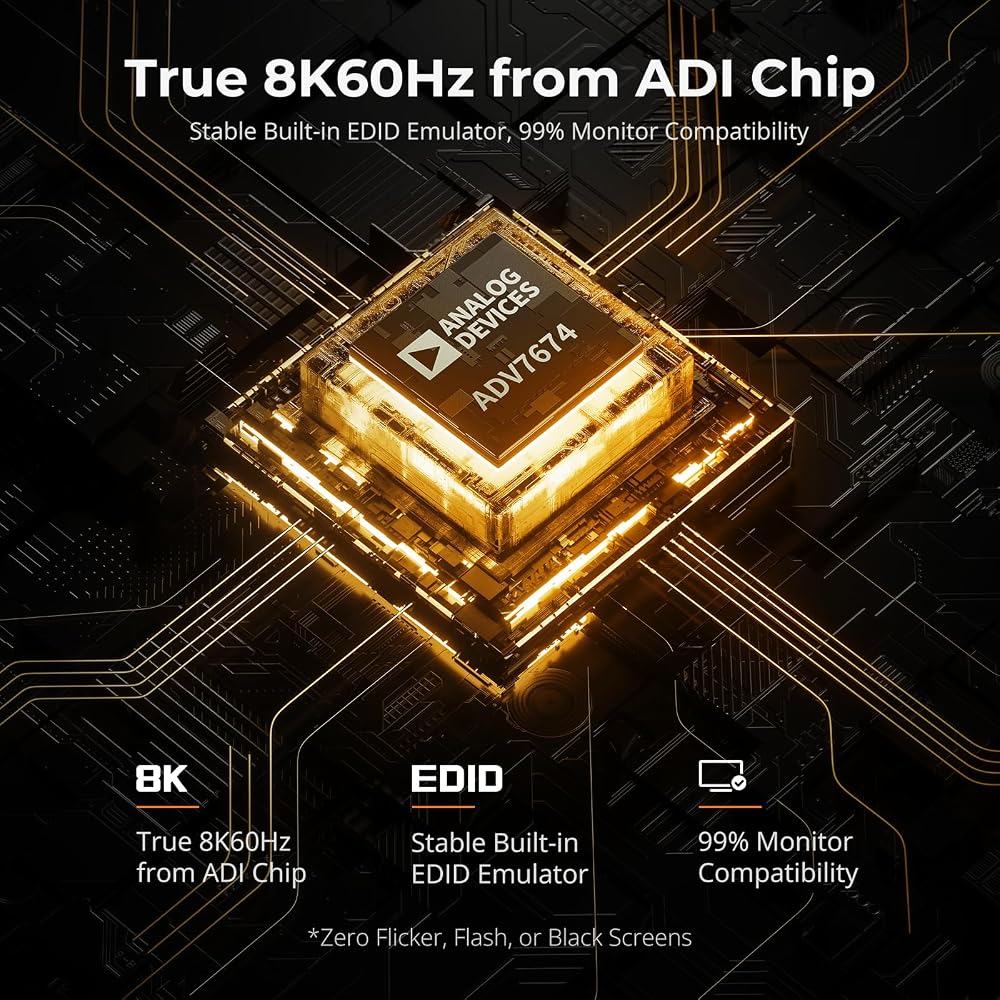
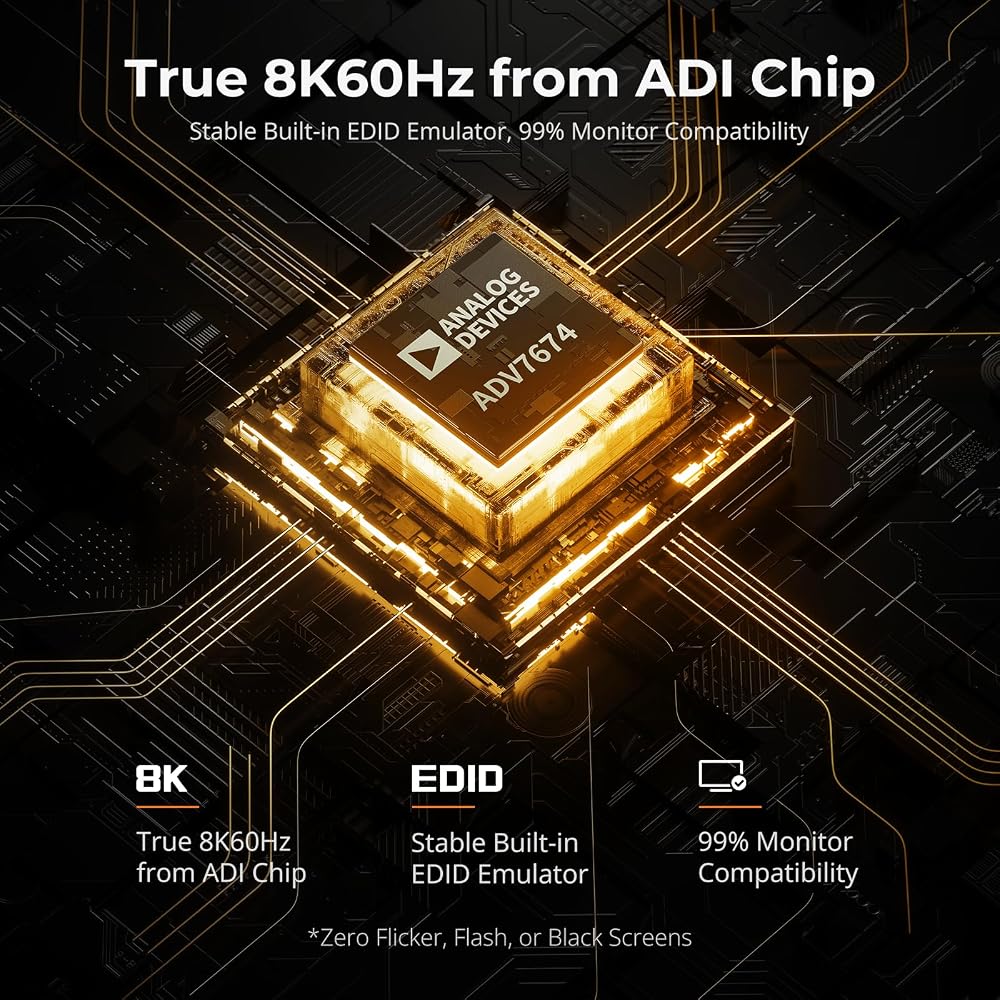
Experience dual-display 8K@60Hz performance with HDMI 2.1 and TESmart's advanced EDID emulation technology for improved compatibility and stable signal switching. Supports VRR, ALLM, and FVA, with DSC enabling up to 8K@60Hz 4:4:4 and 4K@144Hz for high-resolution workstations and high-refresh workflows.
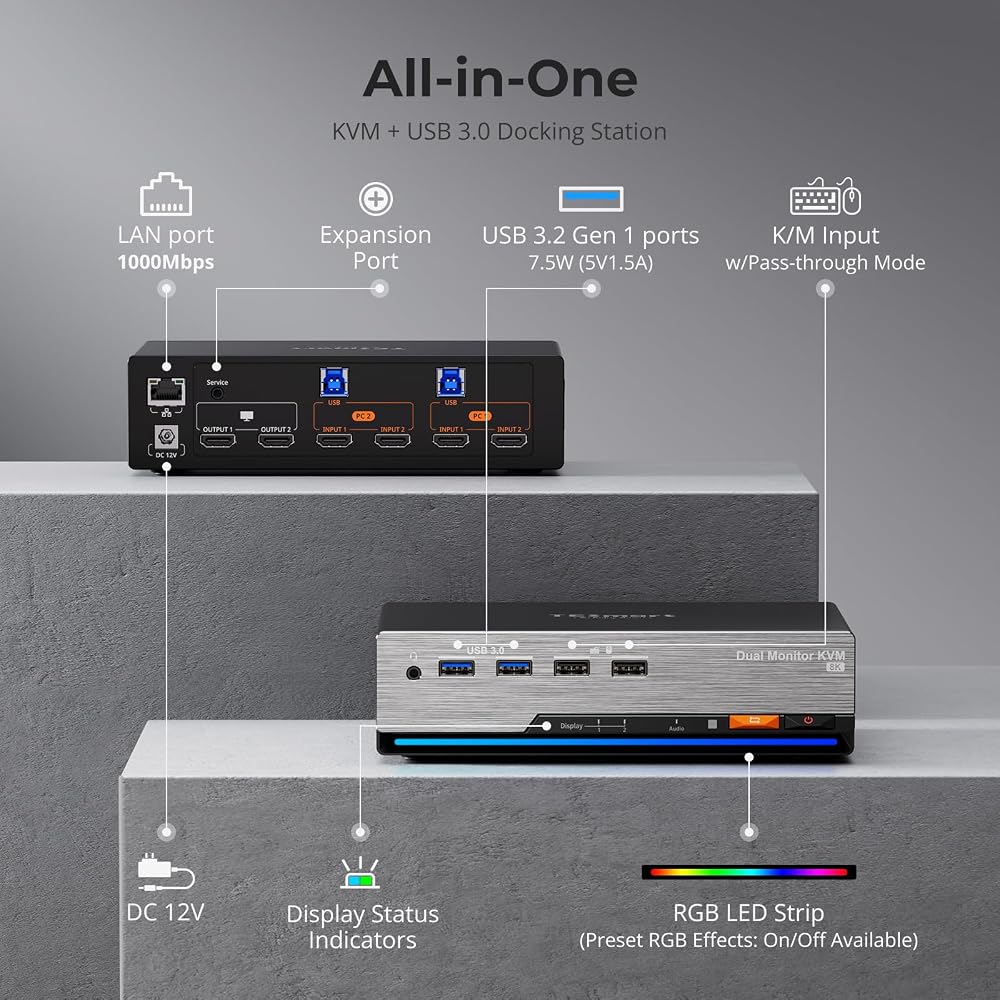
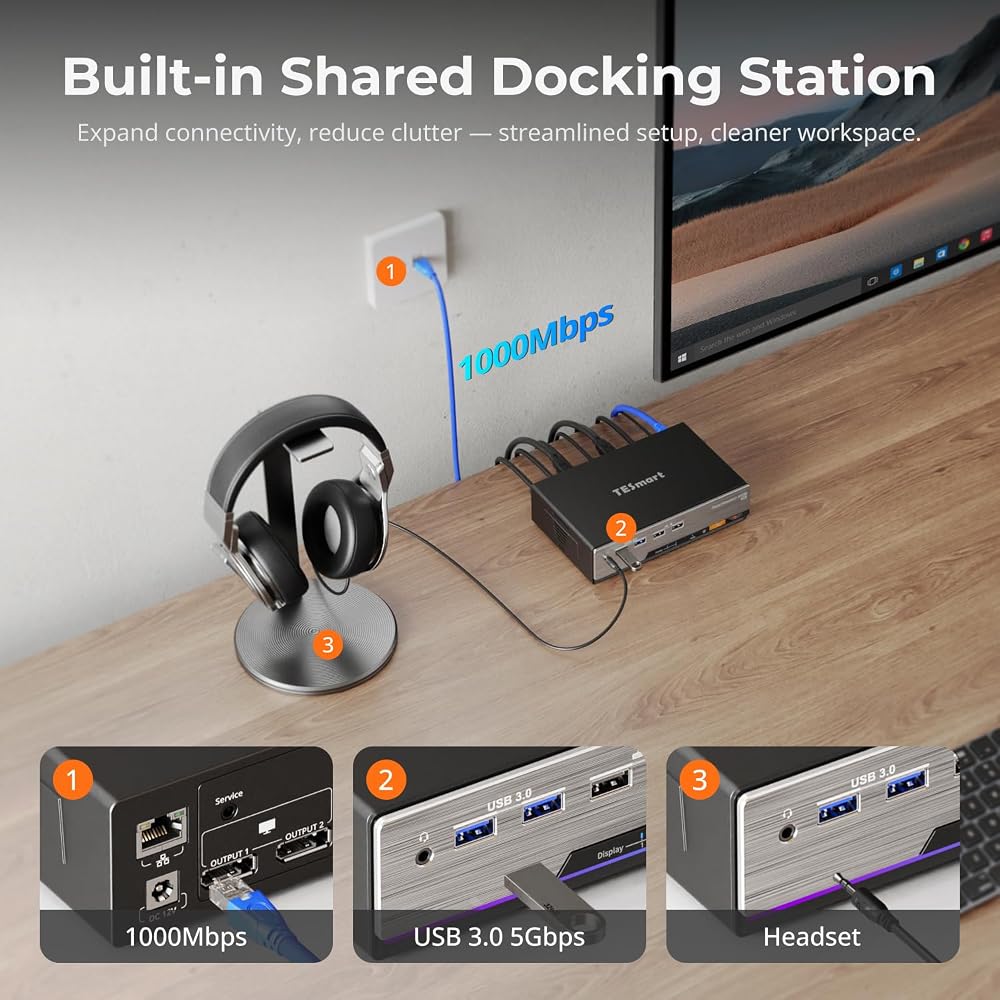
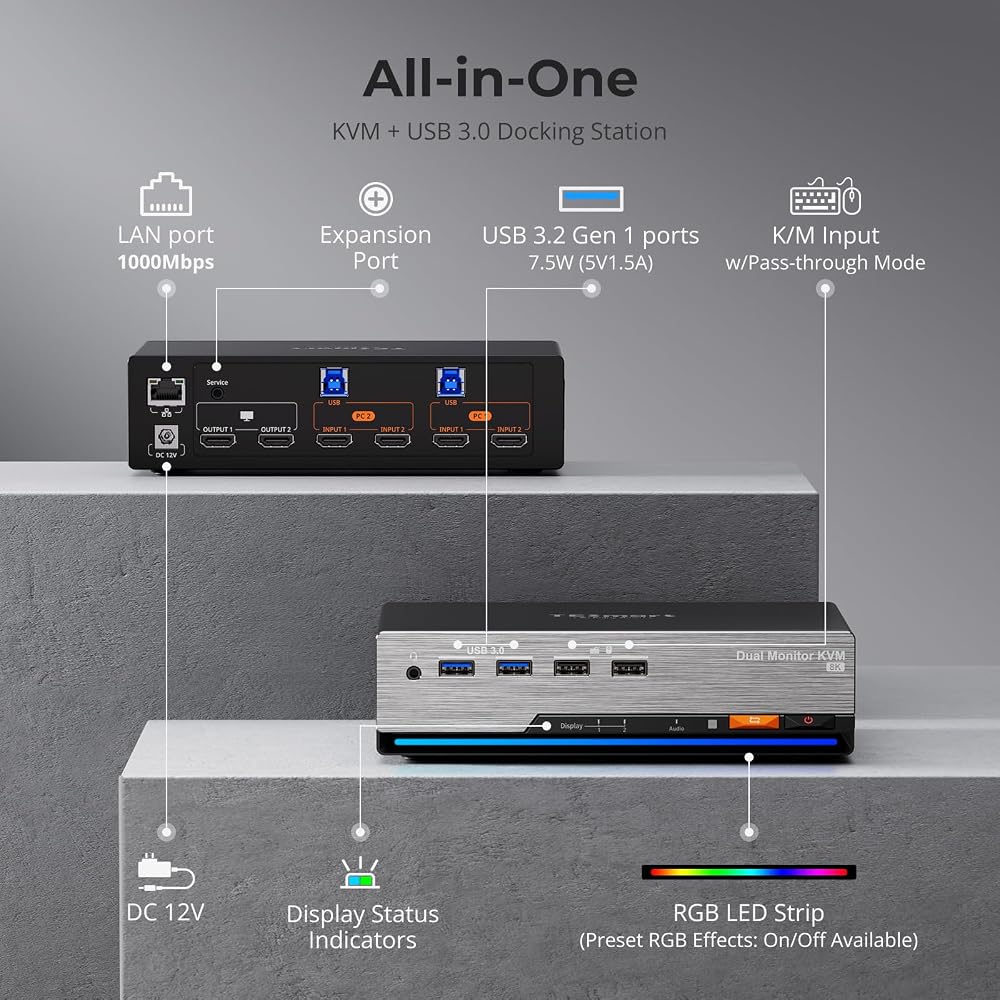
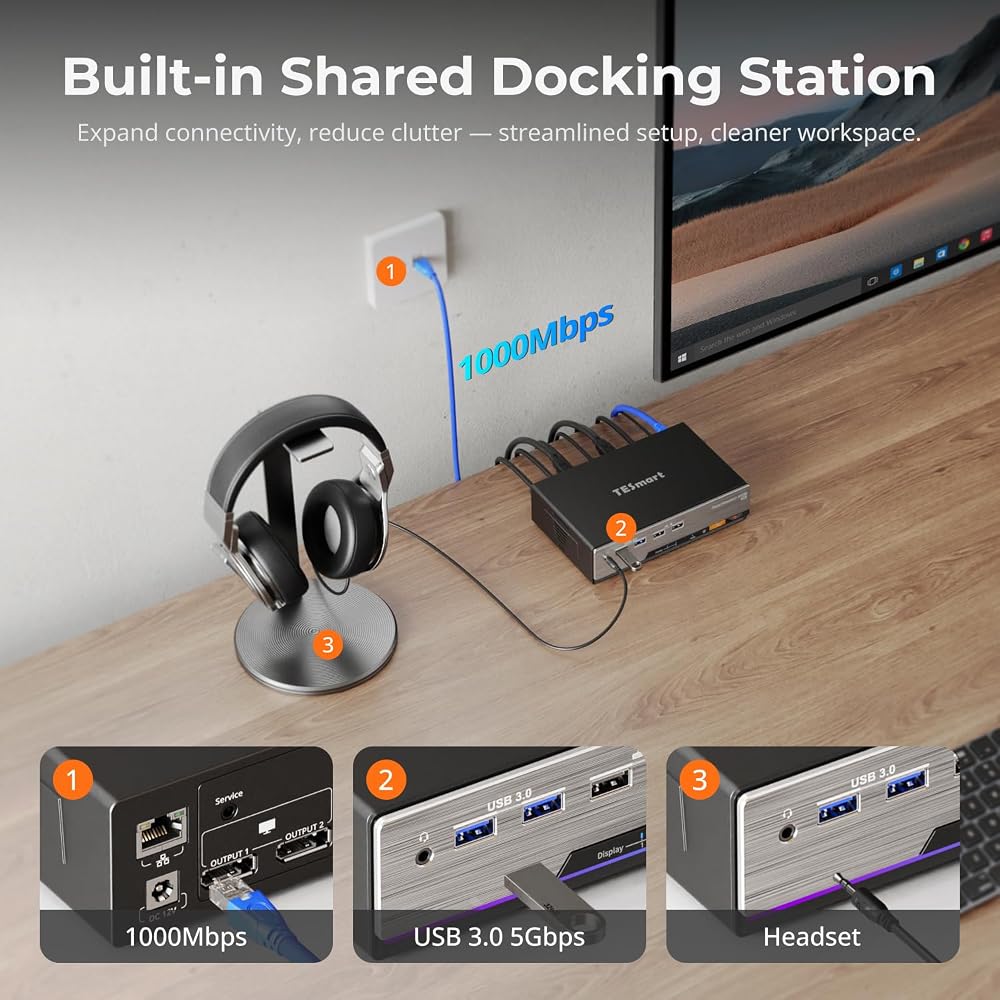
1G Ethernet: Support Gigabit wired network connection, 2 PCs connected to KVM can access the network with only one network cable
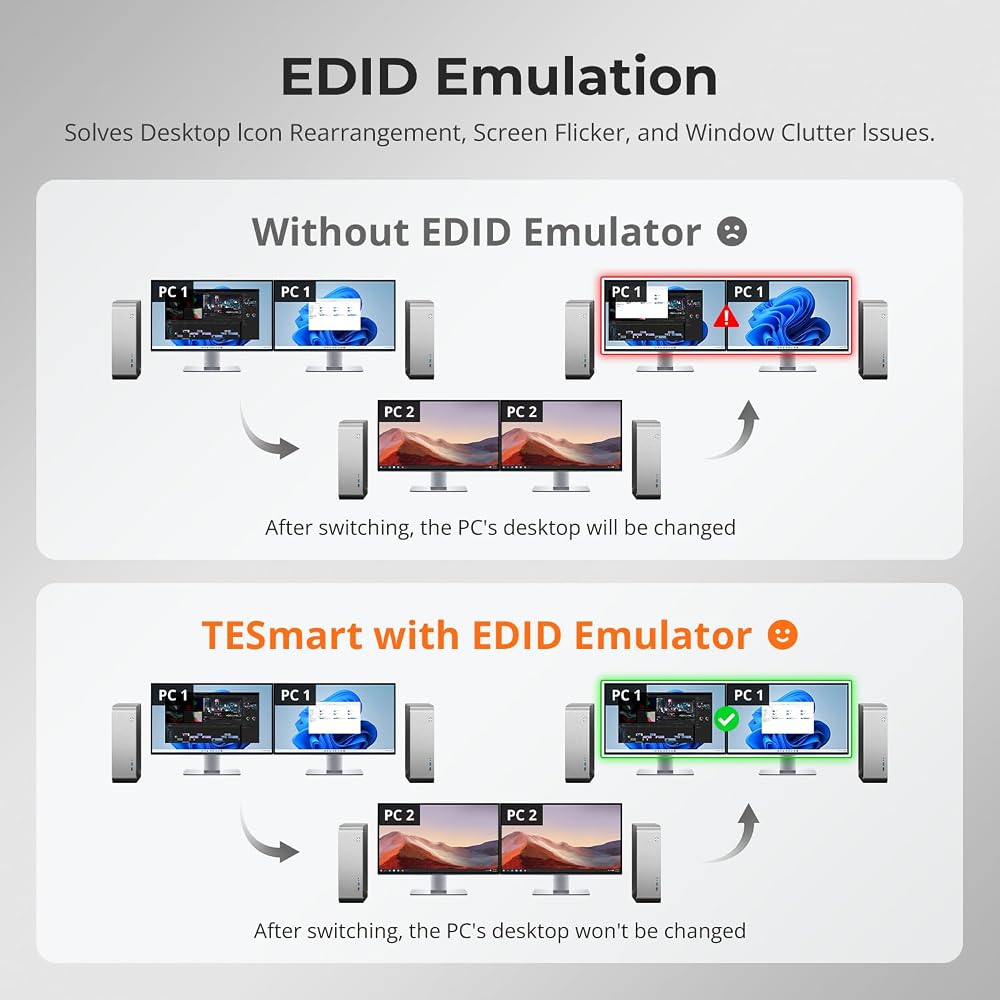
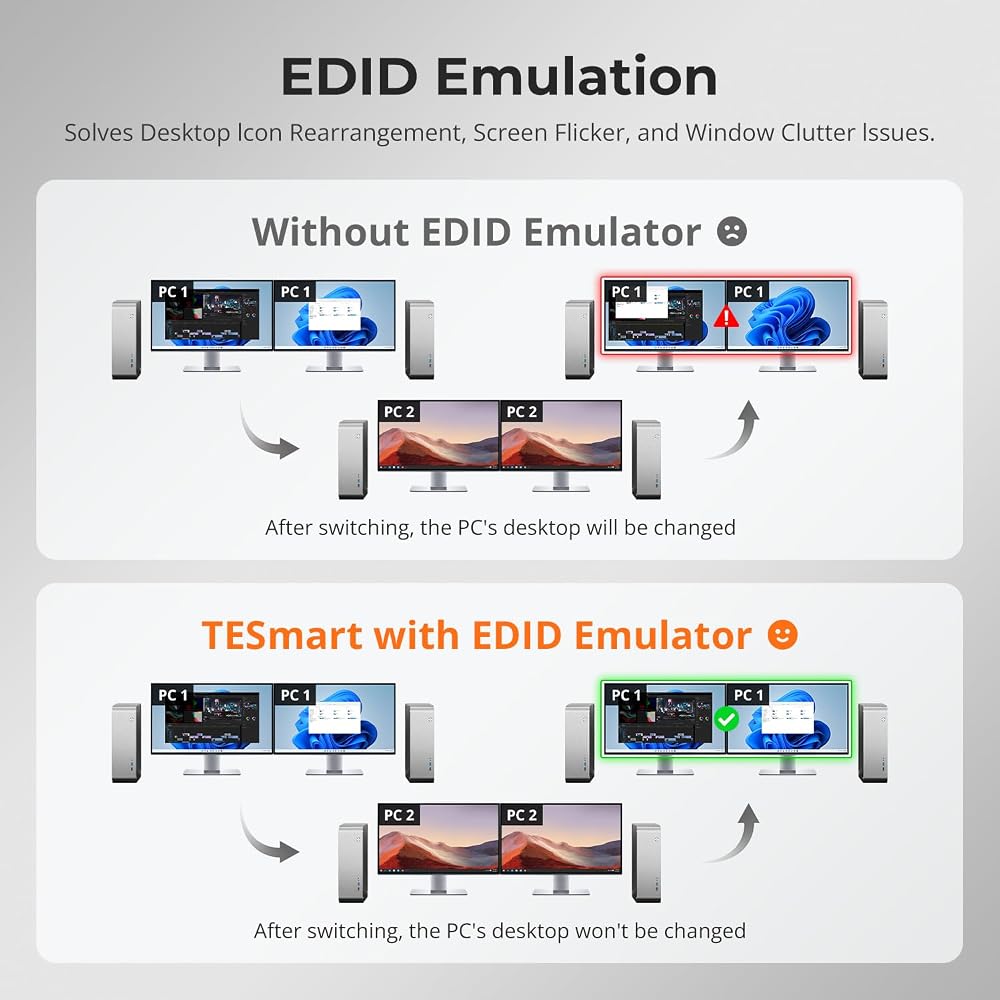
EDID Emulators: With EDID emulators in each input port, your computers always receive the correct display information. Free you from the hassle of constantly adjusting display settings
Ideal KVM for Gaming: Supports Dynamic HDR, including HDMI Dynamic HDR metadata, HDR10+, and Dolby Vision, providing higher dynamic range and color accuracy for more realistic display effects. It also supports Variable Refresh Rate (VRR), Fast Vactive (FVA), and Auto Low Latency Mode (ALLM), reducing screen tearing, stuttering, and input lag for a smoother experience
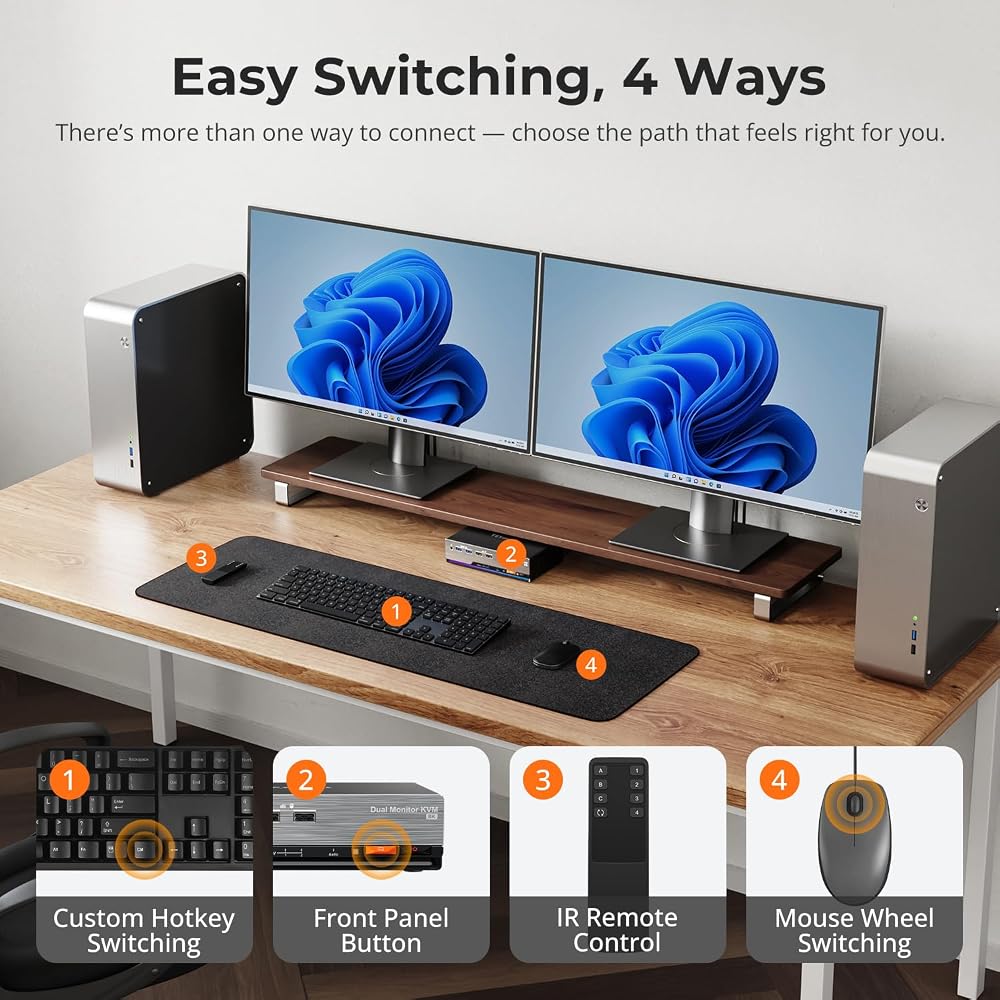
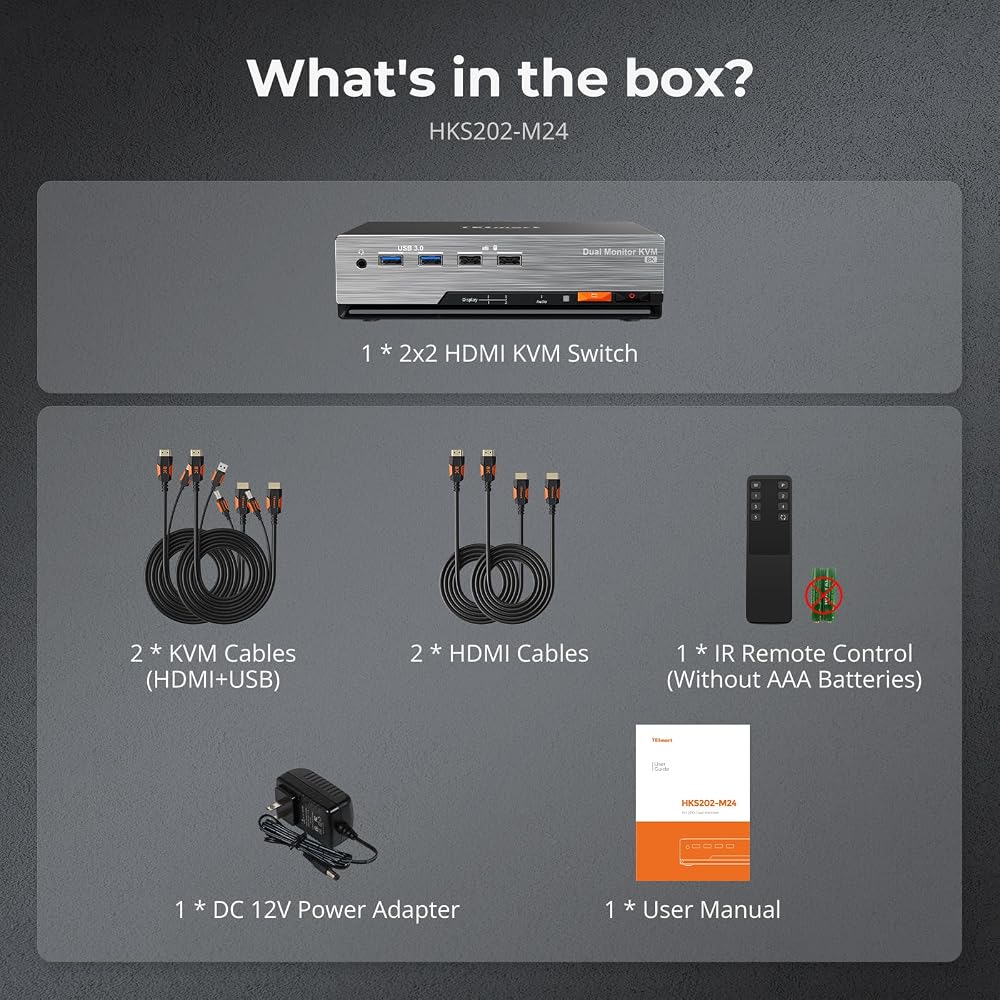
Switching Made Easy: Our KVM offers 4 convenient switching options to suit your needs: keyboard hotkeys (customizable), front panel button, mouse wheel, and IR remote (AAA batteries not included). Effortlessly switch between HDMI sources and manage your devices with ease
Integrated Microphone and L/R audio Output: You can listen to audio from one computer while working on the other or scan a document and save in another computer. Only need to press the front panel keys to operate audio, your headphones will stay 'active' during the switch and no longer have to stop and restart meetings
 TESmart USB 3.0 DisplayPort + HDMI KVM Switch 2 Monitors 2 Computers 4K@60Hz, Dual Monitor KVM Switch 2 Port Extended Display, EDID Emulators, Headset, Hotkey Switch, Button Switch with All Cables
SAR 1,235
TESmart USB 3.0 DisplayPort + HDMI KVM Switch 2 Monitors 2 Computers 4K@60Hz, Dual Monitor KVM Switch 2 Port Extended Display, EDID Emulators, Headset, Hotkey Switch, Button Switch with All Cables
SAR 1,235
 TESmart USB 3.0 HDMI KVM Switch 8 Port 4K@60Hz, 8X1 Rackmount KVM Enterprise-Grade EDID Emulator | Hotkey Switch | RS232 | LAN Port | IR Remote | IP Control | Auto Scan | with 8 Pcs 5ft KVM Cable
SAR 1,829
TESmart USB 3.0 HDMI KVM Switch 8 Port 4K@60Hz, 8X1 Rackmount KVM Enterprise-Grade EDID Emulator | Hotkey Switch | RS232 | LAN Port | IR Remote | IP Control | Auto Scan | with 8 Pcs 5ft KVM Cable
SAR 1,829
 TESmart USB 3.0 HDMI KVM Switch 1 Monitor 4 Computers 4K@60Hz, L/R Audio & Microphone, 4 Port EDID Emulators, Hotkey Switching, Button Switching with Remote Switch and All Input Cables
SAR 819
TESmart USB 3.0 HDMI KVM Switch 1 Monitor 4 Computers 4K@60Hz, L/R Audio & Microphone, 4 Port EDID Emulators, Hotkey Switching, Button Switching with Remote Switch and All Input Cables
SAR 819
 TESmart USB-C + HDMI + DP KVM Switch 4 Computers 2 Monitors 4K@60Hz, USB 3.0 KVM Switch Dual Monitor for Laptop&Desktop, EDID Emulation, Gigabit Network, Hotkey Switch, Input Cables
SAR 3,536
TESmart USB-C + HDMI + DP KVM Switch 4 Computers 2 Monitors 4K@60Hz, USB 3.0 KVM Switch Dual Monitor for Laptop&Desktop, EDID Emulation, Gigabit Network, Hotkey Switch, Input Cables
SAR 3,536